Slack project management: how to run projects inside Slack
Most small teams already run their projects in Slack, whether they planned to or not. Requests arrive in channels, decisions happen in threads, and status lives in someone's memory. This guide covers what Slack handles well, where it breaks, and how to set up tracking that holds up when a deadline is on the line.
Can you manage projects in Slack? (short answer)
Yes, for small and simple projects. Slack Lists, which is included on every Slack plan, including Free, gives each item an assignee, a due date and custom fields. A list can also be shown as a board with columns. Where Slack stops is delivery oversight: it doesn't cap work in progress, flag work that has gone quiet, or report on how work is flowing across projects. So most teams keep the conversation in Slack and the tracking on a connected board.
What Slack can and can't do for project management
| Job | Works well in Slack | Where it breaks |
|---|---|---|
| Capturing requests | Messages, list forms and list items, right in the channel | A request left as a plain message scrolls away unless someone moves it into a list |
| Owners and due dates | List items have assignee and due-date fields | Messages and canvases don't carry them unless you embed a list |
| Status at a glance | Board layout, grouped by a status field | Each list is its own board, with no single view across lists |
| Reminders | List automations send due-date reminders and field-change messages | Reminders key off dates; nothing flags an item that has simply gone quiet |
| Reporting | Slack analytics covers workspace usage and adoption | No throughput, stage-bottleneck or completion-time reporting on list items |
| Workload limits | Assignee field shows who holds what | Nothing caps how many items a column holds |
Slack capabilities reflect Slack's published help-centre documentation as of October 2026. For the column-by-column detail, see our breakdown of the kanban board in Slack.
5 workflows teams run in Slack project management
- Standup replacement. Post a prompt in a team channel each morning (Slack's Workflow Builder can schedule it) and have everyone reply in the thread with done, next and blocked. A blocker that needs a decision becomes a tracked item, not just a reply.
- Intake triage. Send every request to one channel. Once a day, a named triage owner turns each request into an item with an owner and a due date, or declines it in the thread. Nothing stays only as a message.
- Client requests. Keep one shared channel per client and log each request as an item the moment it arrives. When the client asks "where are we on that?", you check the tracker instead of scrolling back through the thread.
- Bug-lite tracking. Teams without a dedicated issue tracker can run one list or board with four stages (Reported, Confirmed, Fixing and Done) and link each item back to the thread where it was reported.
- Status updates. Post a weekly update built from the tracker, not written from memory: what finished, what is late, what is stuck. It takes minutes when the data already exists.
How to set up project tracking in Slack (step-by-step)
- Pick one intake channel. One place where requests start makes it possible to tell when something was missed.
- Choose one home for tracked work. Either a Slack list or a board connected to Slack. Two trackers means two versions of the truth.
- Define four or five stages. For example: To do, In progress, Review and Done. Our guide to kanban for teams covers how to choose them.
- Give every item an owner and a due date at triage. This is a team habit, not a tool setting, and it is the step that prevents most dropped work.
- Send updates back to the channel, selectively. Post the events people act on and leave out the rest, or the channel gets muted.
- Review weekly from the tracker. Look at what finished, what slipped and what has not moved, then post the summary into the channel.
Best tools that add project management to Slack (2026)
Disclosure: we built Otper. Every tool below is described from its vendor's own documentation.
1. Slack Lists (native)
The obvious starting point, because nothing needs to be installed. Items have assignees, due dates, custom fields, subtasks and comment threads, with a table or board layout. It's a good fit for one team tracking simple work inside one workspace.
2. Otper (Slack integration)
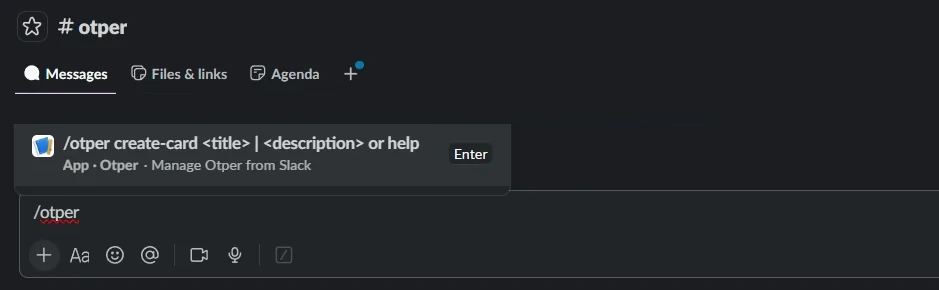
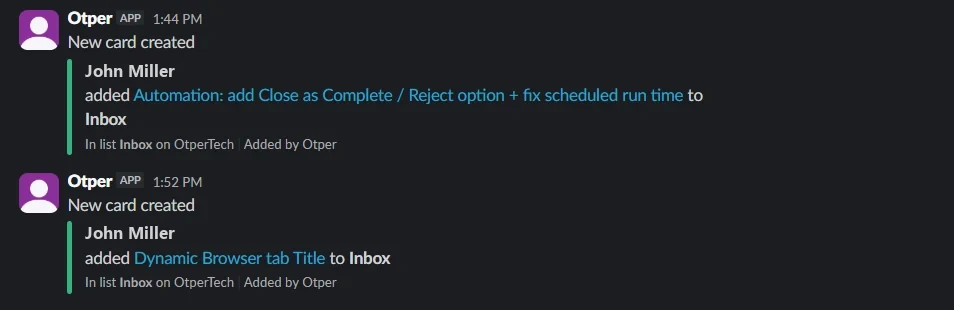
Otper connects to your Slack workspace, so you can create cards and get board updates without
leaving Slack. Run /otper create-card <title> | <description> in a linked
channel, or choose Otper Actions from a message's menu, and the card lands in the
board's first list. Each linked channel picks which events it receives across cards, board, lists and
members.
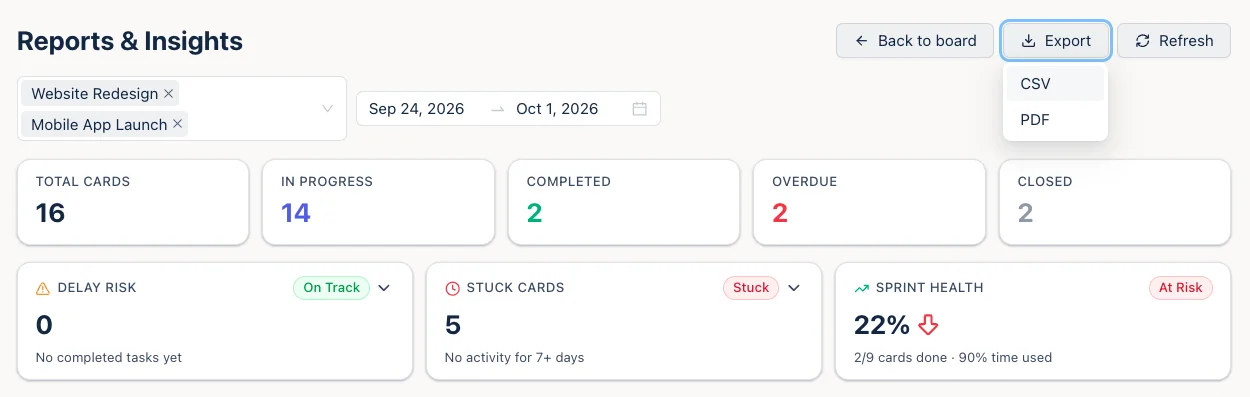
The board behind it adds what Slack lacks: work-in-progress limits per stage, a ranking of the slowest stage, cards flagged after seven days without activity, throughput, and a Gantt timeline. The Slack integration is live, and you connect it from your Otper workspace settings. It is included on the Free plan for up to three teammates. It does not do sprints, story points or task dependencies.
3. Trello app for Slack
Trello's app adds a Create card from message shortcut that sends a message to your Trello Inbox by default. You can also choose a board and add details first. Board alerts post to a channel through the Slack Power-Up. It's a natural fit if your team already plans in Trello.
4. Asana app for Slack
Asana's app creates a task from a message's menu or with /asana create, and
/asana link connects a channel to a project for notifications. It's a natural fit if
Asana is already your system of record.
| Feature | Slack Lists | Otper | Trello | Asana |
|---|---|---|---|---|
| Slack integration | Built into Slack | ✅ live (connect from workspace settings) | Trello app for Slack | Asana app for Slack |
| Create work from Slack | Add items in the list | Slash command or message shortcut | Message shortcut, to Inbox by default | Message menu or /asana create |
| Updates posted to a channel | List automations | Events chosen per channel | Slack Power-Up alerts | Project linked with /asana link |
| Kanban columns | Board layout | Yes, with WIP limits | Boards | Board view |
| Free plan | Included on Slack Free | $0 - up to 3 teammates, unlimited projects, core reporting | Up to 10 collaborators per Workspace, up to 10 boards | Personal - up to 2 users |
Free-plan figures are from each vendor's pricing page, checked 16 September 2026.
Jira + Slack: why engineering teams pair them (and when you don't need Jira)
Jira and Slack are a common pairing for software teams. Jira Cloud for Slack creates work items with
/jira create or from a message's menu, and /jira connect links a channel to
a project so updates about created, transitioned and commented work post where the team talks.
Planning stays in Jira and the conversation stays in Slack.
That pairing earns its keep when you plan with sprints, epics and story points, manage releases, or depend on deeply customised workflows. Keep Jira if that describes you. A small team that doesn't run that process often needs less: a board with owners, stages and a weekly report, connected to the channel where requests arrive. Our Jira comparison for small teams covers where each fits.
When Slack alone is enough vs when you need a board
Slack alone is enough when…
- Two or three people share the work
- Tasks are simple and live in one channel
- A due date and an assignee cover what you track
- Nobody asks for delivery reporting
Connect a board when…
- Deadlines span several projects or clients
- Work passes between owners
- You need to know what has stalled, not just what is due
- Someone expects a weekly status report
If you're in the second column, look for project management software for small teams that connects to Slack instead of replacing it.
FAQ
Does Slack have a kanban board?
Partly. Slack Lists has a board layout that groups items into columns you can drag between. It does not add work-in-progress limits, stuck-work flags or flow reporting around those columns. We cover the detail in does Slack have a kanban board?
Can Slack replace project management software?
For a small team with simple tasks in one channel, often yes. Once work spans several projects, changes hands between owners, or someone needs to know what has stalled and how delivery is trending, most teams keep Slack for the conversation and connect a board for the tracking.
What is the best free project management tool that works with Slack?
Slack Lists is the simplest start because it is built in and available on every Slack plan, Free included. If you need a kanban board with WIP limits, stuck-work detection and delivery reporting, Otper is free for up to three teammates and its Slack integration is included on the Free plan.
How do you track tasks in Slack Lists?
Create a list, add each task as an item with an assignee and a due date, add a status field, then switch the list to board layout grouped by status. List automations can send due-date reminders and post a message when a field changes.
Do you need Jira to manage projects in Slack?
No. Jira suits engineering teams that plan with sprints, epics, story points and releases. A small team without that planning process can run its work on Slack Lists or a lighter connected board instead.
How do you set up Otper with Slack?
Connect your Slack workspace from your Otper workspace settings, link a board to a channel and choose which events it posts, then have each person run /otper login once. After that, /otper create-card or the Otper Actions message shortcut turns a Slack request into a card. The Slack setup guide walks through each step.
Related reading
- Does Slack have a kanban board? Native vs integrated
- Slack kanban board: how to run kanban inside Slack
- What the Otper Slack integration does, in full
- The Otper Slack integration
Try Otper free (3 teammates forever)
Create cards and get board updates without leaving Slack.
Get started free