Slack integration for Kanban boards: turn conversation into tracked work
Most delivery delays are not caused by people missing work. They are caused by updates living in one place and the plan living in another. The new Otper Slack integration closes that gap: it puts board and card updates in the Slack channels your team already watches, and it turns a Slack message into an owned, tracked card without anyone leaving the conversation. The result is fewer status-chasing threads and a board that stays trustworthy.
What the Slack integration does
The connection works in two directions, and both are aimed at the same outcome: keeping decisions and status in one accountable place.
- Board updates flow into Slack. When a card is created, moved, archived, or a board changes, Otper posts a clear, color-coded message into the channel you linked, so the team sees progress where they already talk.
- Slack messages flow into Otper. A request in a channel becomes a real card on the right board, with an owner and a place in the workflow, instead of scrolling out of sight.
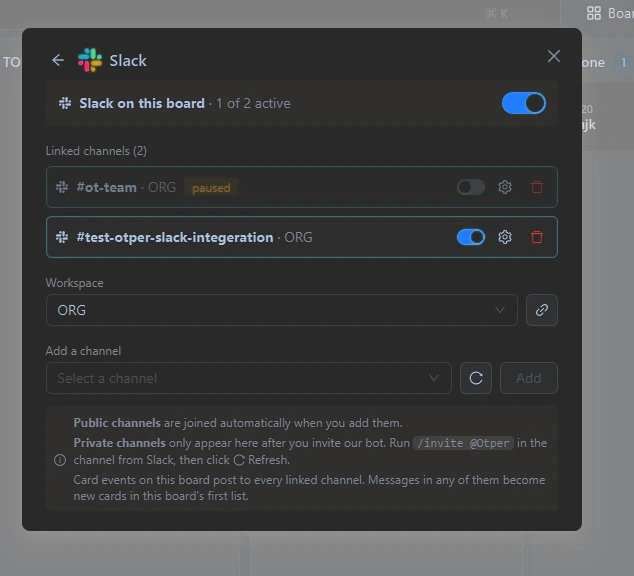
Send the right events to the right channel
A channel full of noise gets muted, and a muted channel helps no one. That is why every linked channel has its own event subscription. When you connect a channel you choose exactly which updates it receives, grouped into four families:
- Cards - created, moved between lists, moved between boards, archived, restored, or deleted.
- Board - renamed, description changed, closed, reopened, transferred, or visibility changed.
- Lists - lists added or removed as the workflow evolves.
- Members - members added or removed, and join requests submitted, approved, or denied.
Point a delivery channel at card movement, point a leadership channel at board and member changes only, and each audience gets a feed it will actually keep on.
Create cards without leaving Slack
When work is requested in chat, the cost of switching tools is where it gets lost. The integration gives your team two ways to capture that work in place:
The slash command
In any linked channel, run /otper create-card <title> | <description>. Everything before
the first | becomes the card title; the rest becomes the description. The card lands on the board
linked to that channel and follows your permissions on it.
The message shortcut
Already have the request in a message? Open the message's More actions menu and choose Otper Actions. The first line becomes the card title, the rest becomes the description, and any files on the message come across as card attachments - useful for turning a shared screenshot or spec straight into tracked work.
Either way, the new card lands in the board's first list, so Slack requests arrive in one predictable intake stage instead of scattered across the workflow.
Ownership and attribution stay intact
A card with no clear owner is a card nobody moves. To keep Slack-created work accountable, each person links
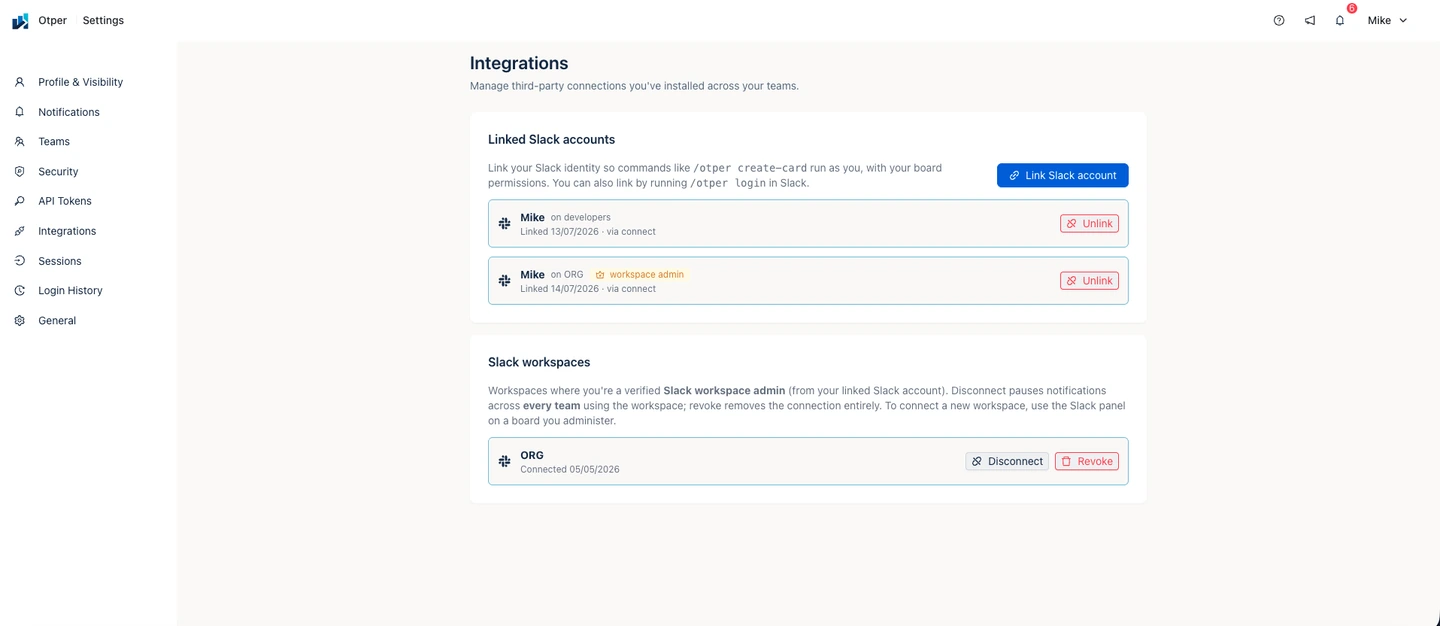
their Slack identity to their Otper account once - either with /otper login in Slack, or
from Settings → Integrations. After that, cards they create from Slack are attributed to
them, respect their board permissions, and appear in the board's activity history like any other work. Linking
is personal and reversible, so nothing is created on someone's behalf without their own account behind it.
Set it up in a few minutes
- Open the Slack panel on a board you administer and connect your workspace. The connection uses Slack's standard authorization screen, so you approve it inside Slack.
- Add a channel, then choose which events it should receive. Public channels are joined automatically; for a
private one, run
/invite @Otperin Slack first, then hit Refresh. - Otper posts a short welcome message to the channel so everyone knows it is connected.
- Ask teammates to link their account once -
/otper loginin Slack, or Settings → Integrations - so their Slack-created cards are attributed to them.
You can link more than one channel per board, and the same workspace can serve many boards - each with its own channels and event choices.
You stay in control
Notifications are only useful when the team trusts they can dial them down. The integration is built so that turning it off is as easy as turning it on:
- Pause one channel with its own switch, without losing its settings, then resume it later in the same state.
- Pause a whole board's alerts with the master switch at the top of its Slack panel.
- Disconnect or revoke a workspace from Settings → Integrations - Disconnect pauses notifications everywhere that workspace is used, Revoke removes the connection entirely. Both are reserved for verified Slack workspace admins, and admin status is re-checked with Slack at the moment of the action rather than trusted from an old record.
Because the integration verifies every request from Slack and de-duplicates events, the messages you get are the ones that were meant for you.
FAQ
What does the Otper Slack integration do?
It posts board and card updates into the Slack channels you choose, and it lets your team create Otper cards from Slack using the /otper create-card slash command or the Otper Actions message shortcut.
Can I choose which events go to a channel?
Yes. Each linked channel has its own event subscription across Cards, Board, Lists, and Members, so a channel only receives the updates that matter to the people in it.
How do I create a card from Slack?
In a linked channel, run /otper create-card <title> | <description>, or use the Otper Actions message shortcut on any message. Attached files come across as card attachments.
Will a card created from Slack have the right owner?
Yes. Link your Slack identity to your Otper account once with /otper login. After that, cards you create from Slack are attributed to you and respect your board permissions.
Can I pause or disconnect Slack later?
Yes. You can pause a single channel, pause the whole workspace, or revoke it entirely. Workspace-level changes are limited to verified Slack workspace admins.
Related reading
- Using the Slack integration in Otper (guide)
- Workflow automation for Kanban teams
- Using Kanban analytics to find bottlenecks and overdue work
- Project management with Otper
Bring your board updates into Slack
Connect one board to a Slack channel, choose the events that matter, and let your team create cards without switching tools.
Get started with Otper