Does Slack have a kanban board?
Short answer: partly. Slack Lists includes a board layout that groups items into columns you can drag work between, so Slack does have kanban-style columns natively. What Slack does not have is the machinery around those columns - no work-in-progress limits, no bottleneck or throughput reporting, and no view across more than one list. That distinction decides whether native Slack is enough for your team, or whether you should connect a real board to it.
What Slack gives you natively
Slack ships two surfaces that teams reach for when work needs tracking, and they do different jobs. Knowing which one you are actually using explains most of the confusion behind the question.
Slack Lists: the closest native thing to a kanban board
A Slack list keeps requests out of the scroll, which is the first operational win any team notices: a message that would have vanished up the channel becomes a row someone owns. Every list item carries completion, a name, an assignee and a due date by default, and you can add fields of your own for priority or status. Items support subtasks and their own comment threads.
Switch the layout from table to board and group by a field, and the list renders as columns you can drag items between. Group by a status field and you have a kanban board in the visual sense, saved as a view anyone with list access can open. For triage inside a single channel, that is genuinely enough.
Lists are not purely passive, either. Slack's own list automations can collect requests through a form, post a message when a chosen field changes, and send due-date reminders - either to the person holding the item or as a summary into a channel. For a small team working out of one channel, that covers a surprising amount of ground.
Worth knowing before you standardise on it: a list holds up to 1,000 items and subtasks on Pro and Business+, or 5,000 on Enterprise Grid, and the oldest items archive automatically once you reach the ceiling.
Slack canvases: a document, not a board
Canvases get mistaken for boards because they also have columns. They are not the same thing. A canvas is a document attached to a channel or conversation - notes, checklists, images, links - and its columns (up to three) arrange the page rather than represent workflow stages. Nothing moves through them, so there is no state to report on.
The useful move is to combine the two: embed a Slack list inside a canvas, so a project brief and the work it describes sit on one page. The kanban part is the list, not the canvas.
Where native tracking runs out
Native tracking records what exists, and its automations react to one item at a time - this field changed, this date is near. Delivery work also needs to answer how the whole thing is flowing, and that is where teams hit the wall: usually around the point where one list becomes several, or someone asks why a release slipped and there is no record to consult. Slack Lists does not cap work in progress per stage, rank which stage is slowing delivery, chart created against completed, flag items that have gone quiet, or report across several projects at once.
Native vs integrated, feature by feature
| Capability | Slack Lists | Slack canvas | Otper board connected to Slack |
|---|---|---|---|
| Columns you drag work between | Yes, board layout | Page columns only | Yes |
| Assignee and due date as fields | Yes | Only via an embedded list | Yes |
| Work-in-progress limits per stage | No | No | Yes - soft warning or hard block |
| Bottleneck ranking per stage | No | No | Yes |
| Throughput and median completion days | No | No | Yes |
| Stuck-work detection | No | No | Yes - no activity for 7 days |
| Reporting across several projects | No | No | Yes |
| Timeline view | No | No | Yes - Gantt, grouped by status, member or label |
| Updates posted into a channel | Yes - field-change and due-date automations | No | Yes - events chosen per channel, across four groups |
| Item ceiling | 1,000 per list (5,000 on Enterprise Grid) | Not applicable | Limits are ones you set deliberately, as WIP caps |
Slack capabilities above reflect Slack's published documentation as of September 2026.
What changes when the board is connected to Slack
The integrated option is not "leave Slack". It is a board that lives in your workflow with Slack wired to it in both directions, so the conversation and the status of the work stop drifting apart.
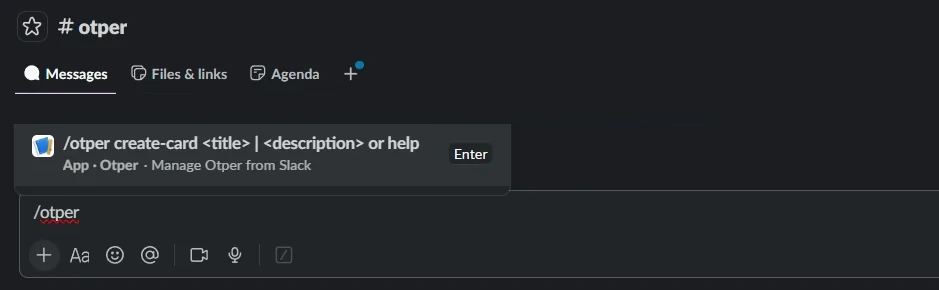
- Requests stop scrolling away. Run
/otper create-card <title> | <description>in a linked channel, or open any message's More actions menu and choose Otper Actions - the first line becomes the title, the rest the description, and attached files come across with it. Either way the card lands in the board's first list, so every Slack request arrives in one predictable intake stage instead of in five people's memories. - Progress reaches the people who need it, and only them. Every linked channel keeps its own event subscription across four groups - Cards, Board, Lists and Members - so a delivery channel can receive card movement while a leadership channel receives board and member changes only. A channel nobody mutes is a channel that still works when something goes wrong.
- Attribution survives the handoff. Each person links their Slack identity once with
/otper login. After that a message-turned-card is attributed to its creator, respects their permissions on that board, and lands in the board's activity history - so "who raised this, and when?" still has an answer months later. Assign an owner on the card itself; creation records who asked, not who is accountable.
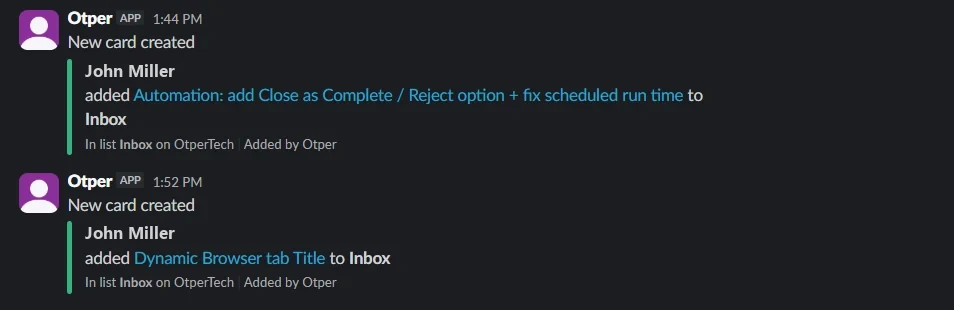
Setup is a board-level action, not an admin ticket: open a board you administer, go to Integrations, connect the workspace, and link a channel. One board can post to several channels, and one workspace can serve many boards. The Slack setup guide walks through linking a channel and picking its events, and the full integration write-up covers turning a Slack message into a tracked card in detail.
Which should you pick?
| You want… | Use |
|---|---|
| A personal checklist next to a conversation | Slack canvas |
| Simple tracked items inside one channel, in columns | Slack Lists, board layout |
| Real delivery: owned cards, workflow stages, WIP limits, timelines and reporting - driven from Slack | Otper's Slack kanban integration |
If you are weighing the integrated route in more depth, the companion guide to running a Slack kanban board covers the two-way setup end to end, and our guide to Slack project management covers the wider workflow, from intake to weekly status.
2026 update: Slack Lists' board layout - what it can and can't do
Slack Lists' board layout is now a mature part of Slack, so the useful question is no longer whether Slack has columns. It is which jobs those columns can carry. The answer below follows Slack's published documentation as of September 2026.
What it can do
- Board-layout grouping: group items by a field, such as status, and drag them between the resulting columns.
- Assignee and due-date fields on every item by default, plus custom fields of your own.
- Per-item comments and subtasks, so the discussion about an item stays attached to it.
- Triage inside one workspace: requests captured where the conversation already happens, with due-date reminders and field-change messages through list automations.
What it can't do
- No WIP limits: nothing caps how many items a column holds.
- No stuck-work detection: reminders key off due dates, and nothing flags an item that has simply gone quiet.
- No throughput or bottleneck reporting: there is no measure of created against completed, or of which stage is slowing delivery.
- No cross-project view: each list is its own board, with no single view or report spanning several.
None of this is a flaw for the job Slack Lists is built for. For simple triage in a single channel it is genuinely fine, and adding another tool would be overhead. The gap only matters once work has owners who hand off to each other, and someone needs to know what has stalled and how delivery is trending.
FAQ
Does Slack have a kanban board?
Partly. Slack Lists includes a board layout that groups items into columns you can drag work between, so Slack does have kanban-style columns natively. What it does not have is the delivery machinery around them: no work-in-progress limits, no bottleneck or throughput reporting, and no view across several projects. For that, teams connect a real kanban board to Slack.
Does Slack have kanban boards natively, or do I need an app?
Natively, Slack Lists covers the visual part - columns, an assignee and a due date on each item, subtasks and comment threads - inside one list. You need a connected kanban tool once you want WIP limits, bottleneck and throughput reporting, timelines, or one report spanning several projects.
Can a Slack canvas work as a kanban board?
Not really. A canvas is a document surface for notes, checklists and images. It supports up to three columns, but those arrange the page rather than represent workflow stages, so nothing moves through them as status. If you want columns that mean something, embed a Slack list in the canvas and use the list board layout, or connect a real board.
What is the difference between Slack Lists and a kanban board?
Slack Lists records what exists: an item, who has it, when it is due. A delivery kanban board also governs how work flows - capping work in progress per stage, ranking which stage is slowing delivery, tracking created against completed, and flagging cards with no recent activity. Lists tracks items; a kanban board manages flow.
Is there a free way to run a kanban board with Slack?
Yes. The Otper Slack integration is not a paid add-on - it works on the Free plan, which covers unlimited projects for up to three teammates. Connect a board to a channel, and card and board updates post into Slack while Slack messages become tracked cards.
Does Slack have a real kanban board?
It has board-layout columns, yes. It does not have the kanban machinery around them: no WIP limits, no stuck-work flags and no delivery reporting.
Can Slack Lists replace a kanban tool?
For simple triage in one channel, yes. For client work that needs named owners, stale-work detection and reporting, no.
What's the cheapest way to add real kanban to Slack?
Keep Slack for intake and notifications, and run the actual workflow on a connected board with card owners and a flag for anything idle for seven days. The Otper Slack integration is included on the Free plan, for up to three teammates.
Related reading
- Slack kanban board: how to run kanban inside Slack
- The Otper Slack integration
- Slack setup guide: connecting a board to a channel
- What the Otper Slack integration does, in full
- Kanban board software in Otper
Outgrown a list? Connect a real board to Slack
Keep the conversation in Slack and put WIP limits, bottleneck ranking and throughput behind it. Free for up to three teammates.
Get started free