Slack kanban boards: how to run kanban inside Slack
Does Slack have kanban boards? Not real ones. Slack holds your team's conversations, but a request that matters still scrolls away in a channel while your board lives somewhere else - and that gap is where delivery slips. The fix is a Slack kanban board integration: kanban cards that exist inside your workflow, fed by the channel your team already watches.
Slack's own Lists and canvases cover lightweight tracking inside a channel, but they stop short of delivery work: no WIP limits, no throughput or bottleneck reporting, and nothing that spans projects. For real delivery you want a kanban system connected to Slack, not a list living inside it - which is what Otper's two-way integration does.
A kanban board that works both ways
The integration runs in both directions, with one aim: keeping the conversation and the status of the work in the same accountable place.
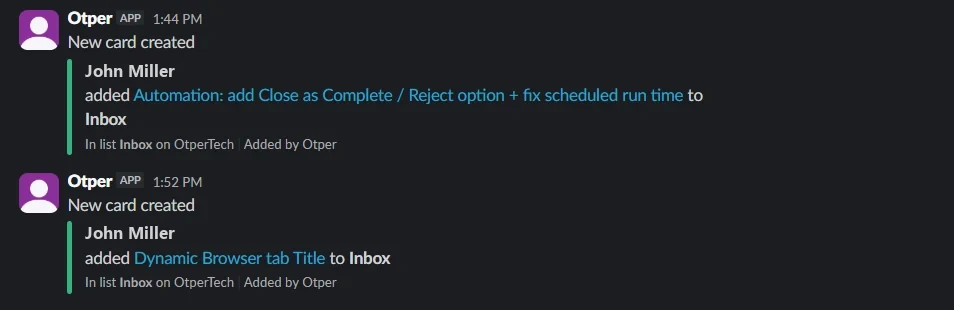
- Board updates flow into Slack. When a card is created, moved or archived - or the board itself changes - Otper posts a clear, color-coded message into the linked channel, so the team sees progress where they already talk.
- Slack messages flow into Otper. A request in a channel becomes a real card on the right board, in the workflow, instead of scrolling out of sight. Use the slash command, or the message shortcut on any message.
Turn a Slack message into a kanban card
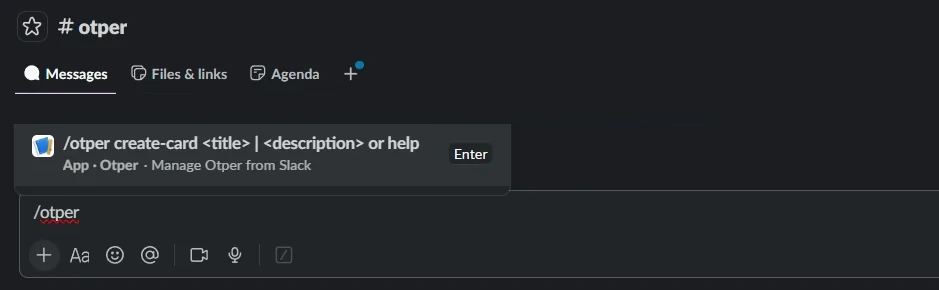
Two ways to capture work without leaving the conversation. Run
/otper create-card <title> | <description> in a linked channel - everything before the
first | becomes the title, the rest the description. Or open any message's More
actions menu and choose Otper Actions: the first line becomes the title, the rest the
description, and attached files come across with it. Either way the card lands in the board's
first list, so Slack requests arrive in one predictable intake stage.
Send the right events to the right channel
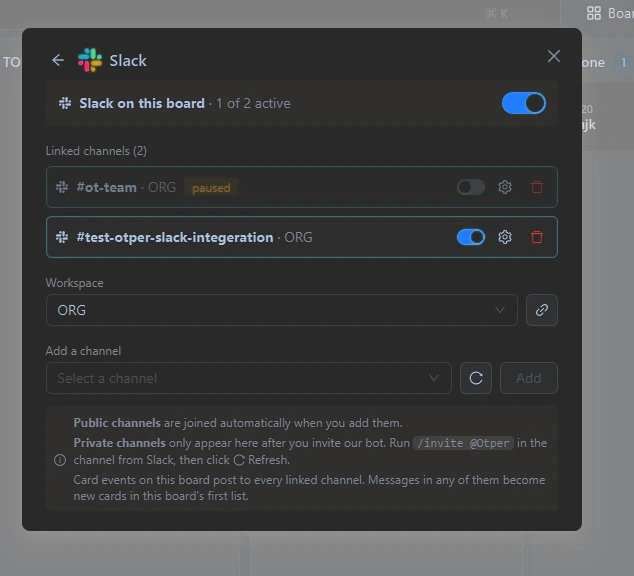
A channel full of noise gets muted, and a muted channel helps no one. Every linked channel gets its own event subscription, so you choose exactly which updates it receives:
- Cards - created, moved between lists, moved between boards, archived, restored, deleted.
- Board - renamed, description changed, closed, reopened, transferred, visibility changed.
- Lists - added or deleted as the workflow evolves.
- Members - added or removed, and join requests submitted, approved or denied.
Point a delivery channel at card movement; point a leadership channel at board and member changes only. Each audience gets a feed it will actually keep switched on.
Ownership and attribution stay intact
A card nobody owns is a card nobody moves. Each person links their Slack identity to their
Otper account once with /otper login, or from Settings →
Integrations. After that a message-turned-card is attributed to its creator, respects their
permissions on that board, and lands in the board's activity history like any other work - so when
leadership asks "who has this?", the answer is on the card, not buried in a thread.
Set it up in a few minutes
- Open a board you administer, go to Integrations, and connect your Slack workspace through Slack's own authorization screen.
- Link a channel and pick the events it should receive. Public channels are joined automatically; for a
private one, run
/invite @Otperin Slack first, then hit Refresh. - Ask teammates to run
/otper loginonce, so cards they create from Slack are attributed to them.
No admin ticket required. One board can post to several channels, and one workspace can serve many boards - each with its own channels and event choices.

Which should you pick?
| You want… | Use |
|---|---|
| A personal checklist next to a conversation | Slack canvas |
| Simple tracked items inside one channel | Slack Lists |
| Real delivery: owned cards, workflow stages, timelines and reporting - driven from Slack | Otper's Slack kanban integration |
FAQ
Does Slack have kanban boards?
Not natively. Slack Lists and canvases handle lightweight tracking, and a list can carry status and assignee fields, but a delivery kanban board - workflow stages, WIP limits, throughput and bottleneck reporting - needs an integration like Otper, which connects a real board to Slack in both directions.
How do I create a kanban board in Slack?
Build the board in Otper, then connect it: open the board, go to Integrations, connect your Slack workspace, and link a channel. Cards created from Slack messages land on that board, and board updates post back into the channel automatically.
Is there a free Slack kanban integration?
Yes. The Otper Slack integration is not a paid add-on - it works on the Free plan, which covers unlimited projects for up to three teammates, so you can run a kanban board in Slack at no cost and upgrade when the team grows.
Can I turn a Slack message into a task?
Yes. Use the Otper Actions message shortcut on any message in a linked channel. The first line becomes the card title, the rest becomes the description, and files on the message come across as card attachments.
Can I control which updates reach a channel?
Yes. Every linked channel has its own event subscription across four groups - Cards, Board, Lists and Members - so a delivery channel can receive card movement while a leadership channel receives board and member changes only.
Related reading
- Does Slack have a kanban board? Native vs integrated
- Kanban board software in Otper
- Slack setup guide: connecting a board to a channel
- What the Otper Slack integration does, in full
- Kanban for marketing teams
Run kanban where your team already works
Connect one board to a Slack channel, choose the events that matter, and let your team turn messages into owned cards without switching tools.
Get started free