Using the Slack integration in Otper
The Slack integration keeps your team's status and its conversation in the same place. Board updates appear in the channels people already watch, and requests raised in Slack become owned, tracked cards - so nothing important lives only in a chat thread.
What you can do with it
- Send board updates to Slack - card and board activity posts into the channels you choose.
- Create cards from Slack - a slash command or message shortcut turns a request into a card.
- Keep work attributed - linked accounts mean each Slack-created card has a real owner.
- Stay in control - pause a channel, pause the workspace, or revoke access at any time.
Step-by-step setup
-
1. Connect your Slack workspace
Open a board and go to its Slack settings. Choose Connect Slack and approve Otper on Slack's own authorization screen. You need a board role that can manage the board to connect a workspace. The same workspace can then be reused across your other boards.
-
2. Link a channel to the board
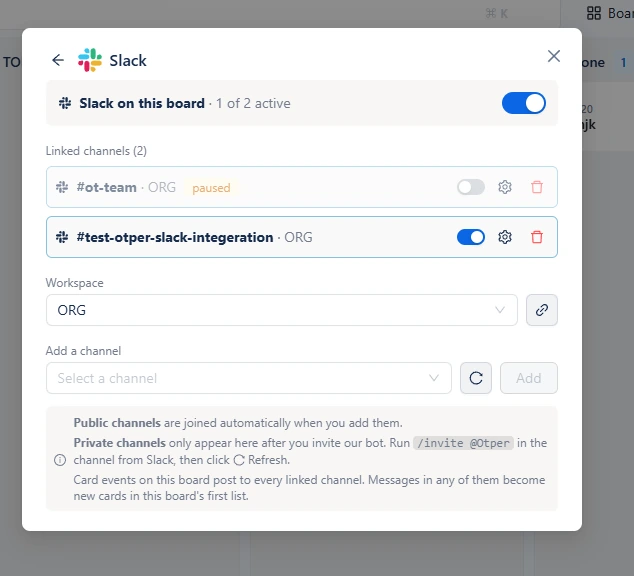
In the board's Slack panel, choose a workspace, then pick a channel under Add a channel. Public channels are joined automatically when you add them. Private channels only appear in the list after you invite the bot: run
/invite @Otperin that channel from Slack, then click Refresh. Once linked, Otper posts a short welcome message so the team knows the channel is connected. You can link as many channels as the board needs. -
3. Choose which events the channel receives
Every channel has its own event subscription, so you can keep each one focused. Events are grouped into Cards, Board, Lists, and Members (see the table below). Point an execution channel at card movement and a leadership channel at board and member changes only.
-
4. Link your account for attribution
Linking your Slack identity is what makes
/otper create-cardrun as you, with your board permissions. It is a one-time, personal step, and there are two ways to do it: run/otper loginin Slack, or open Settings → Integrations and choose Link Slack account. You can unlink any account from the same screen, or with/otper logoutin Slack.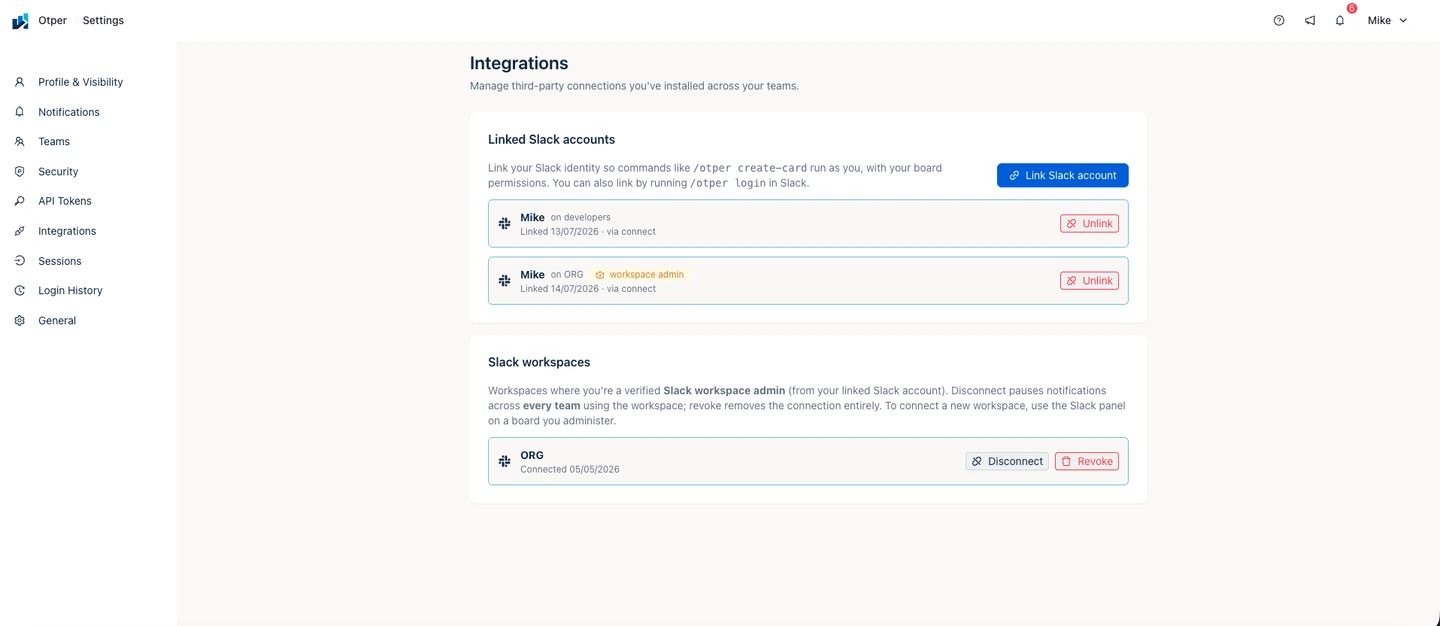
Settings → Integrations shows every Slack account you've linked, and any workspace where you are a verified Slack admin. -
5. Create cards from Slack
In a linked channel, run
/otper create-card <title> | <description>- text before the first|becomes the title, the rest becomes the description. Or use the Otper Actions message shortcut from any message's More actions menu: the first line becomes the title, the rest the description, and attached files become card attachments. New cards land in the board's first list, ready to be triaged like any other work.
Events you can send to a channel
| Group | Example events |
|---|---|
| Cards | Card created, moved between lists, moved between boards, archived, restored, deleted. |
| Board | Board renamed, description changed, closed, reopened, transferred, visibility changed. |
| Lists | List added, list deleted. |
| Members | Member added or removed, join request submitted, approved, or denied. |
Slash commands
/otper create-card <title> | <description>- create a card in this channel's linked board./otper login- link your Slack identity to your Otper account./otper logout- remove your account link from this workspace./otper help- show the available commands.
Turning notifications up or down
Notifications are only useful if the team trusts they can dial them back. Controls exist at three levels, from narrowest to broadest:
- One channel - use the switch next to a linked channel to pause its updates without losing its settings, then turn it back on later in the same state. The gear edits its events; the bin unlinks it.
- A whole board - the Slack on this board switch at the top of the panel pauses or resumes every linked channel at once.
- A whole workspace - in Settings → Integrations, Disconnect pauses notifications across every team using that workspace, and Revoke removes the connection entirely. Both are limited to verified Slack workspace admins, and admin status is re-checked with Slack at the moment you act.
FAQ
Can one workspace serve several boards?
Yes. Connect the workspace once, then link the channels each board needs. Every channel keeps its own event choices.
Do private channels work?
Yes. Run /invite @Otper in the private channel from Slack, then click Refresh in the board's Slack panel and the channel will appear in the list. Public channels are joined automatically when you add them.
Which list do cards from Slack land in?
The board's first list. Treat it as an intake stage and triage from there, the same as any other new card.
Why does a card from Slack say it needs an account link?
Card creation is attributed to a real Otper user. Run /otper login once to link your Slack identity, then try again.
Who can disconnect or revoke the workspace?
Only verified Slack workspace admins, from Settings → Integrations. Any board manager can still pause or unlink individual channels for their own board without affecting anyone else.
What is the difference between Disconnect and Revoke?
Disconnect pauses notifications across every team using the workspace, and you can resume later with your channel settings intact. Revoke removes the connection entirely, so reconnecting means authorizing Otper in Slack again.
Troubleshooting
| Symptom | Likely cause and fix |
|---|---|
| No updates arriving in the channel | The channel may be paused, or the board's master switch is off, or its event subscription excludes those events. Check the switches in the Slack panel, then review the channel's events with the gear icon. |
| A private channel isn't in the "Add a channel" list | The bot isn't in it yet. Run /invite @Otper in that channel from Slack, then click Refresh. |
| A "reinstall required" message appears | The Slack authorization is stale or was revoked. Reconnect the workspace from the board's Slack settings. |
| Slash command says the channel isn't linked | Link the channel to a board first, and confirm the workspace connection is active. |
Related guides
- How to set up a Kanban board
- Working with cards
- Project management with Otper
- Slack integration for Kanban boards (blog)
Connect your board to Slack