Otper for Slack
Slack and Otper integration
Connect Otper with Slack to manage project work directly from your team conversations. Create Kanban cards from Slack messages, assign work, track updates, and keep your team aligned without switching between apps.

Free to install. You'll need an Otper account to connect a board.
What you can do
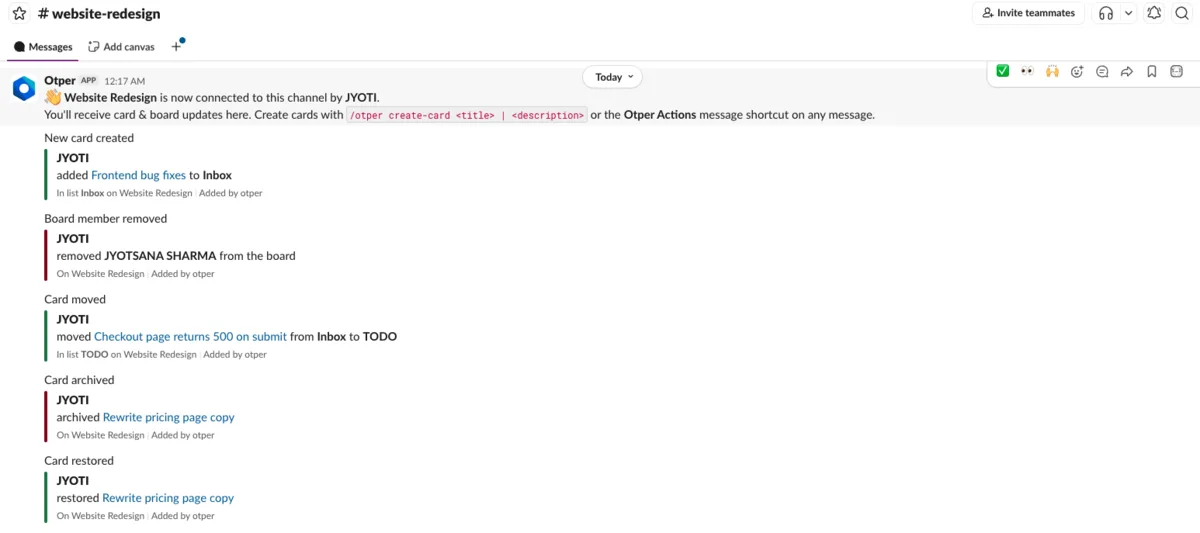
Four things Otper adds to your workspace
And what each one actually looks like in Slack.
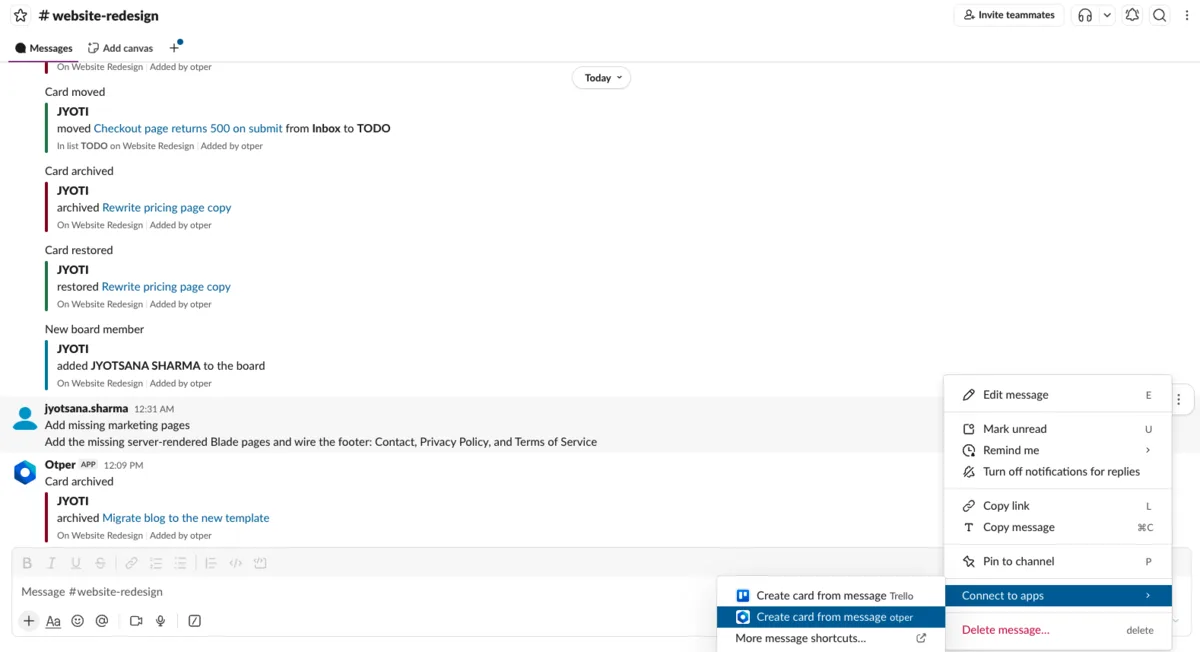
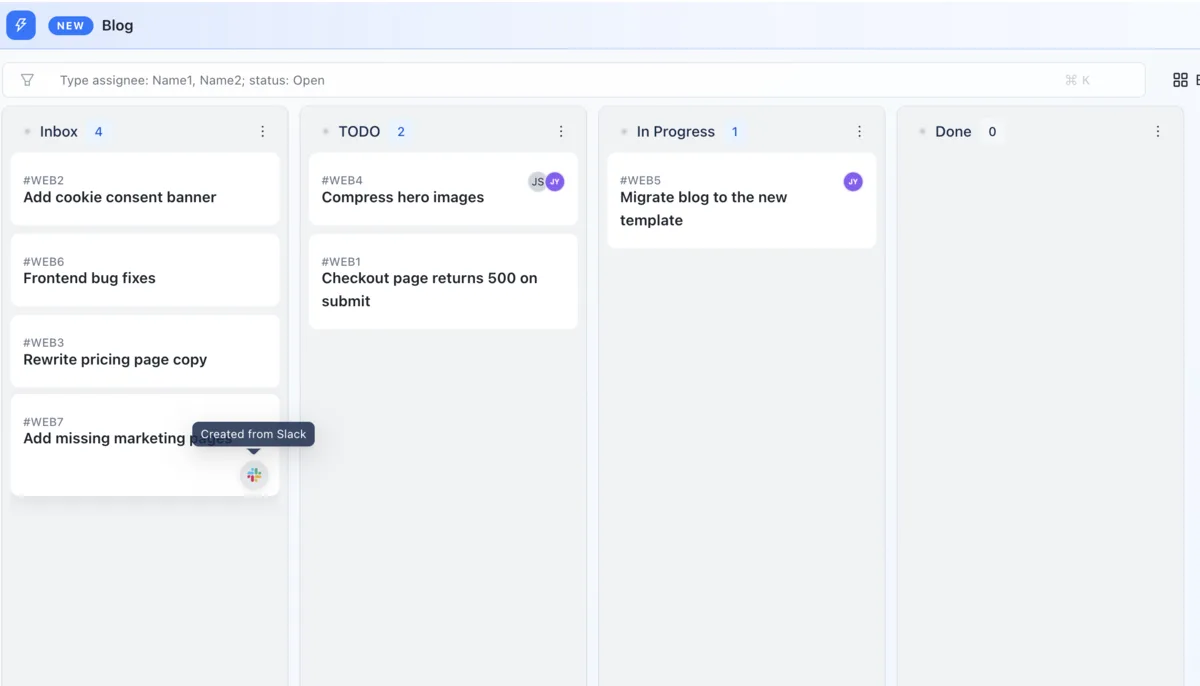
Turn a message into a card
Right-click any message → More actions → Otper Actions. The first line becomes the card title, the rest becomes the description, and any files attached to the message come across as attachments on the card.
Create cards with a command
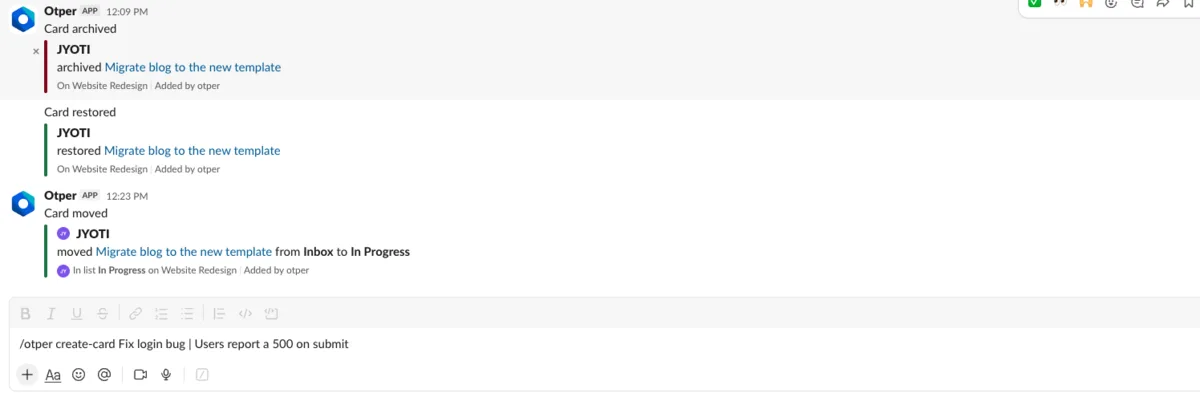
Run /otper create-card Fix login bug | Users report a 500 on submit
in any connected channel. Everything after the first
| becomes the description.
Only the updates that matter
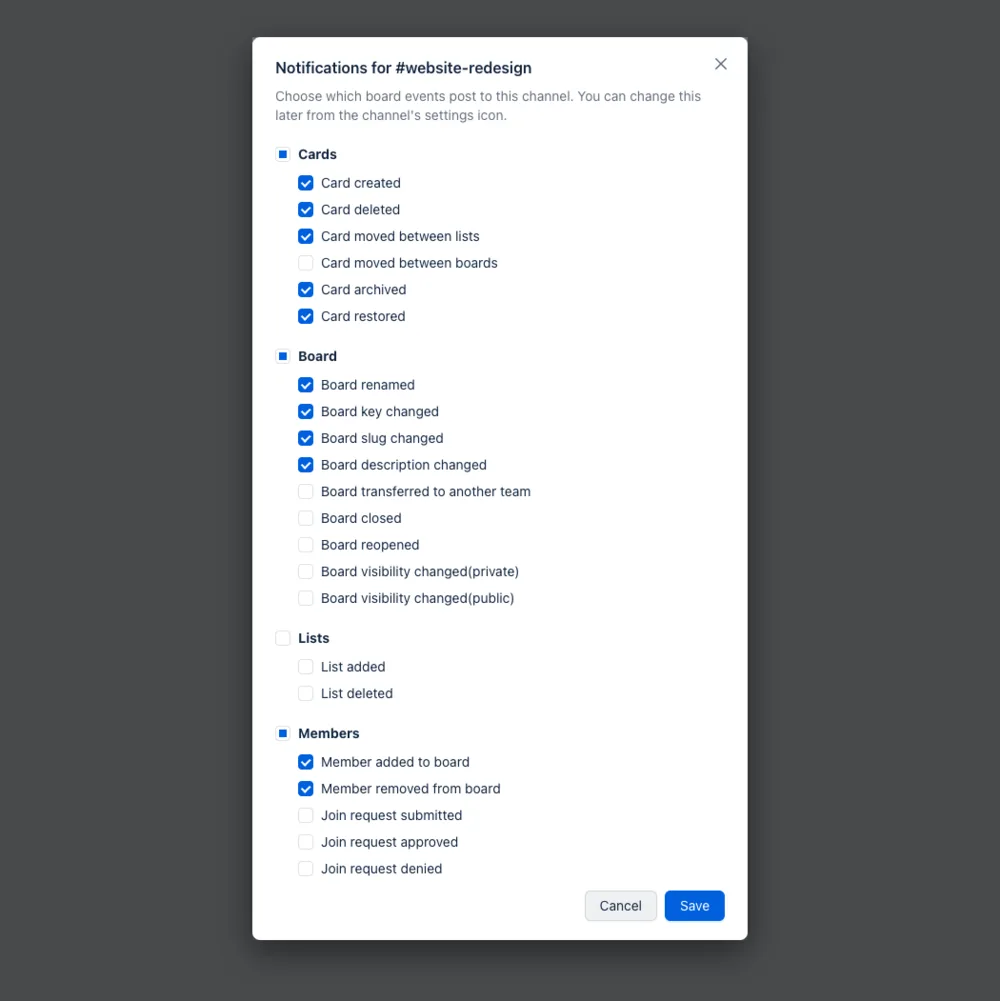
Connect a board to any channel and pick exactly which events post there - cards created, moved between lists or boards, archived or deleted; board and list changes; members added or removed; join requests. Each channel chooses its own, so a delivery channel and a design channel can follow different things.
Personal notifications, with replies
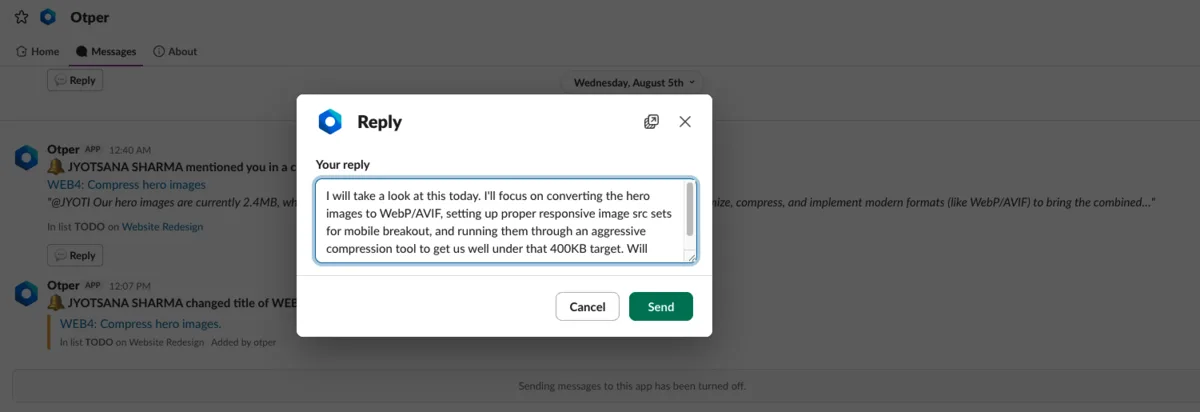
Get a direct message when you're mentioned, assigned a card, or someone comments on your work. Reply to a comment straight from the Slack notification and it posts to the card as your reply.
Setup
Four steps, about two minutes
Here is every screen you'll see, in order.
-
1
Add Otper to Slack
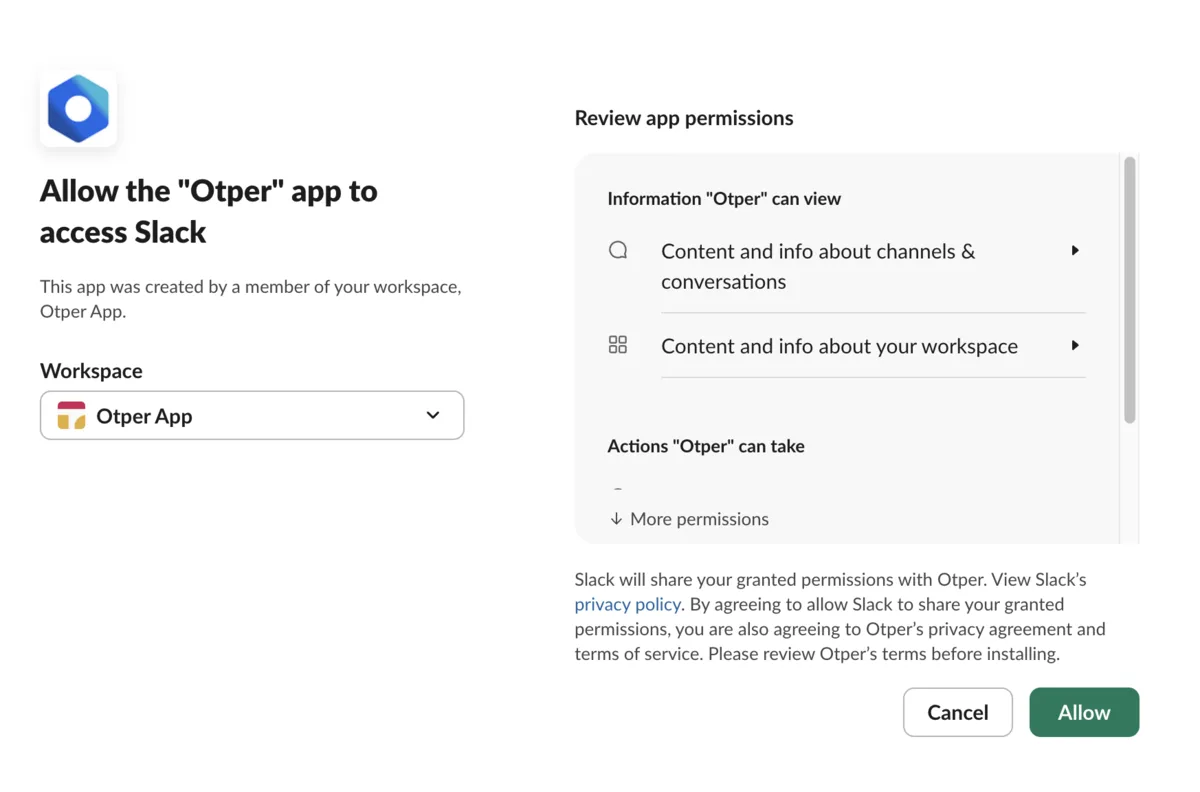
Use the button above, or install from the Slack Marketplace. Slack shows you exactly what Otper can access before anything is installed - a workspace administrator may need to approve it.
-
2
Link your account
Run
/otper loginin Slack, or open Settings → Integrations and choose Link Slack account. This tells us who you are, so cards you create from Slack are attributed to you. Commands won't create anything until it's done - the Home tab confirms when you're linked.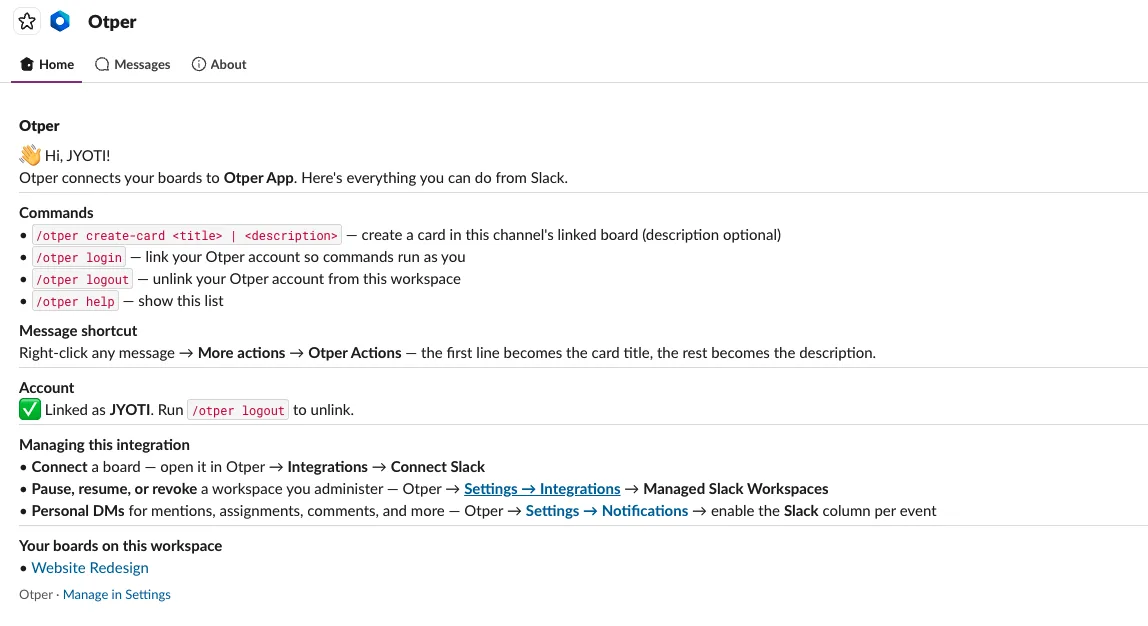
-
3
Connect a board to a channel
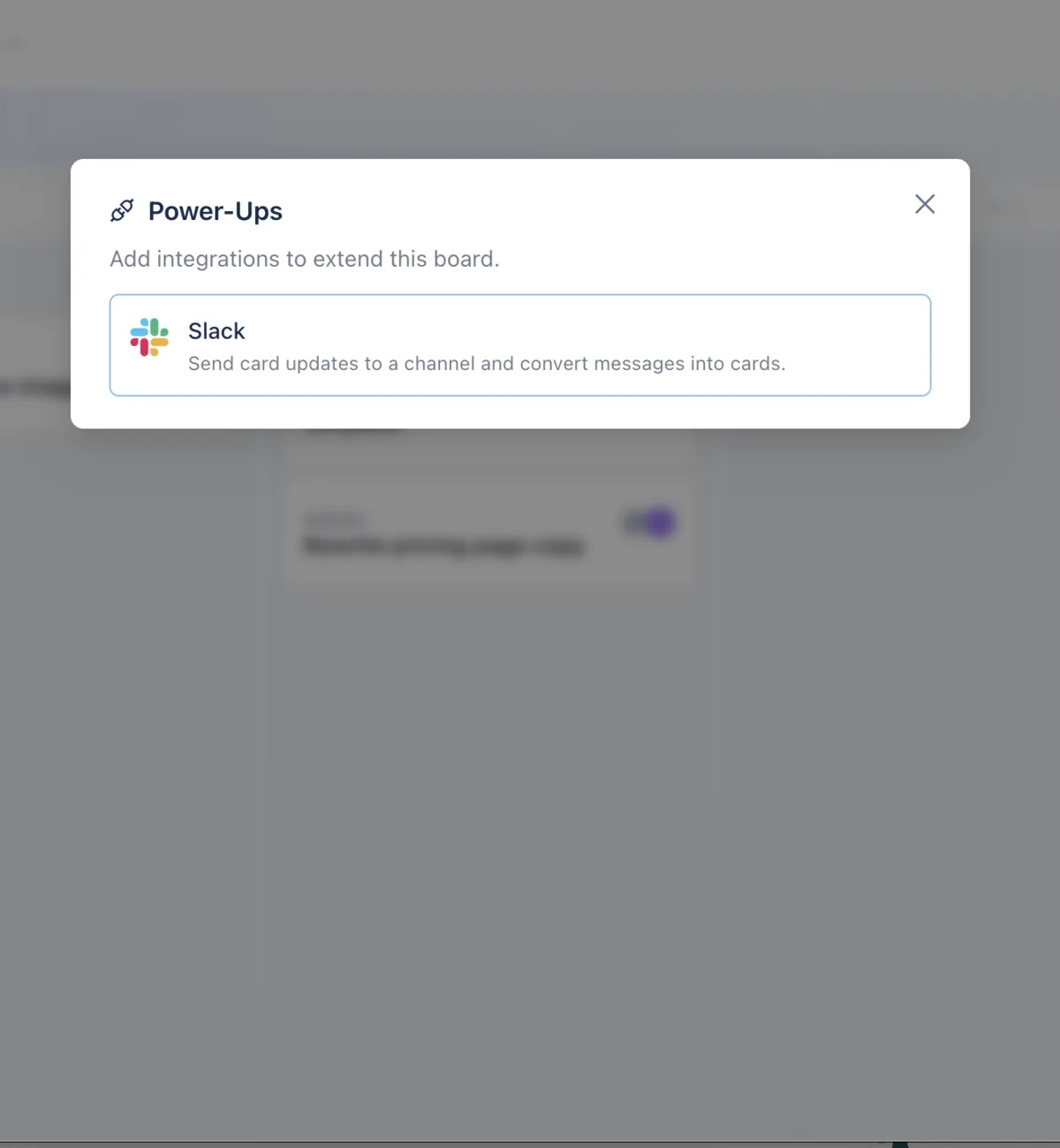
Open a board → Power-Ups → Slack, pick the workspace and a channel, then choose which events should post there. Board admins can connect several channels, and pause any of them without disconnecting.
-
4
That's it - updates start arriving
Otper confirms the connection in the channel and starts posting the events you picked. Public channels are joined automatically; for a private channel, run
/invite @Otperthere first.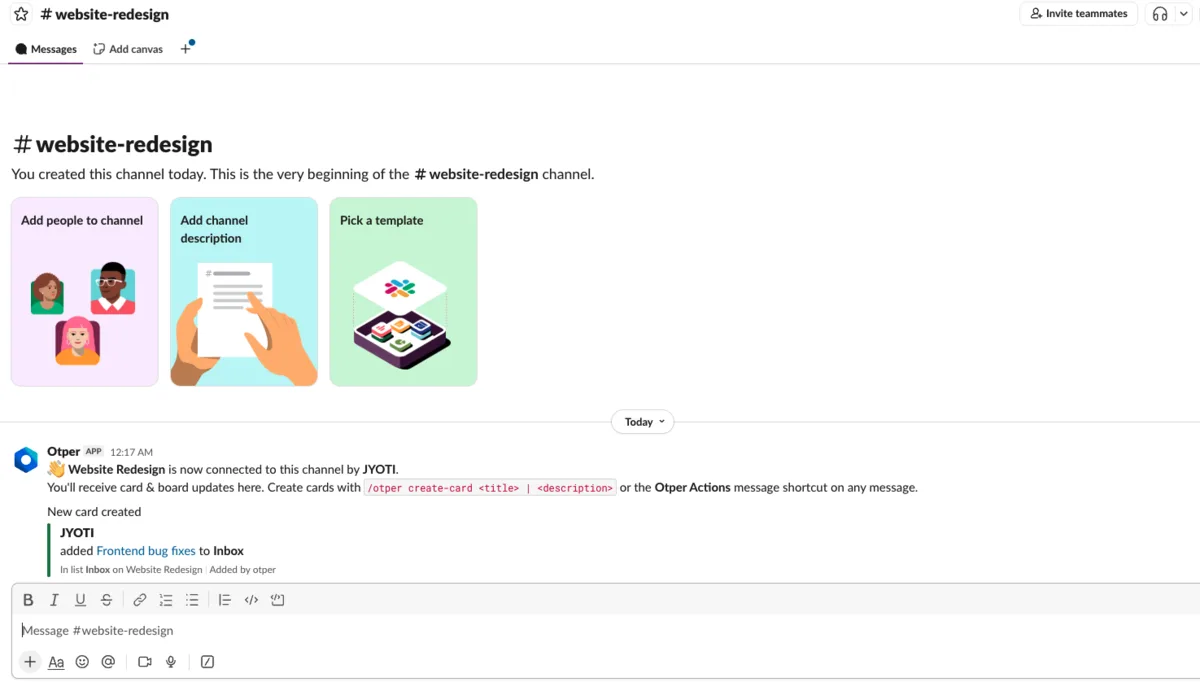
Permissions
You stay in control
We never read channel history
Otper reads a message only when you deliberately hand it over - with /otper create-card or the Otper Actions shortcut on a specific message. Nothing is monitored in the background.
Every channel is opt-in
A board posts only to channels a board admin has connected, and only the events chosen for that channel. Pause any channel without disconnecting it.
Disconnect at any time
A Slack workspace admin can disconnect or revoke from Settings → Integrations, or remove the app in Slack. Either deletes the stored access token immediately.
Our Privacy Policy sets out exactly what the Slack integration stores and how to have it removed.
Common questions about the Slack integration
Can I create tasks from Slack messages?
/otper create-card in a connected channel.Can Otper post updates into a Slack channel?
Can I reply to card comments from Slack?
Does Otper read our Slack history?
/otper create-card or the Otper Actions shortcut.Is the Slack integration free to install?
Do I need an Otper account to use the integration?
/otper login so cards they create from Slack are attributed to them. Commands will not create anything until the account is linked.Bring your boards into Slack
Free to install, and you can disconnect at any time. Need a hand? Get in touch - we reply within two business days.