Getting started with Otper
Use this quick-start guide to create a secure Otper account, build your first board, and invite the people who need access. The goal is a workspace where tasks, decisions, and deadlines are visible from the first day.
Step-by-step setup
-
1. Create your account
Start with a verified identity so activity, comments, assignments, and board changes can be attributed correctly. You can sign up from the registration page, then strengthen the account with multi-factor authentication, recovery codes, and passkeys from security settings. Create your account.
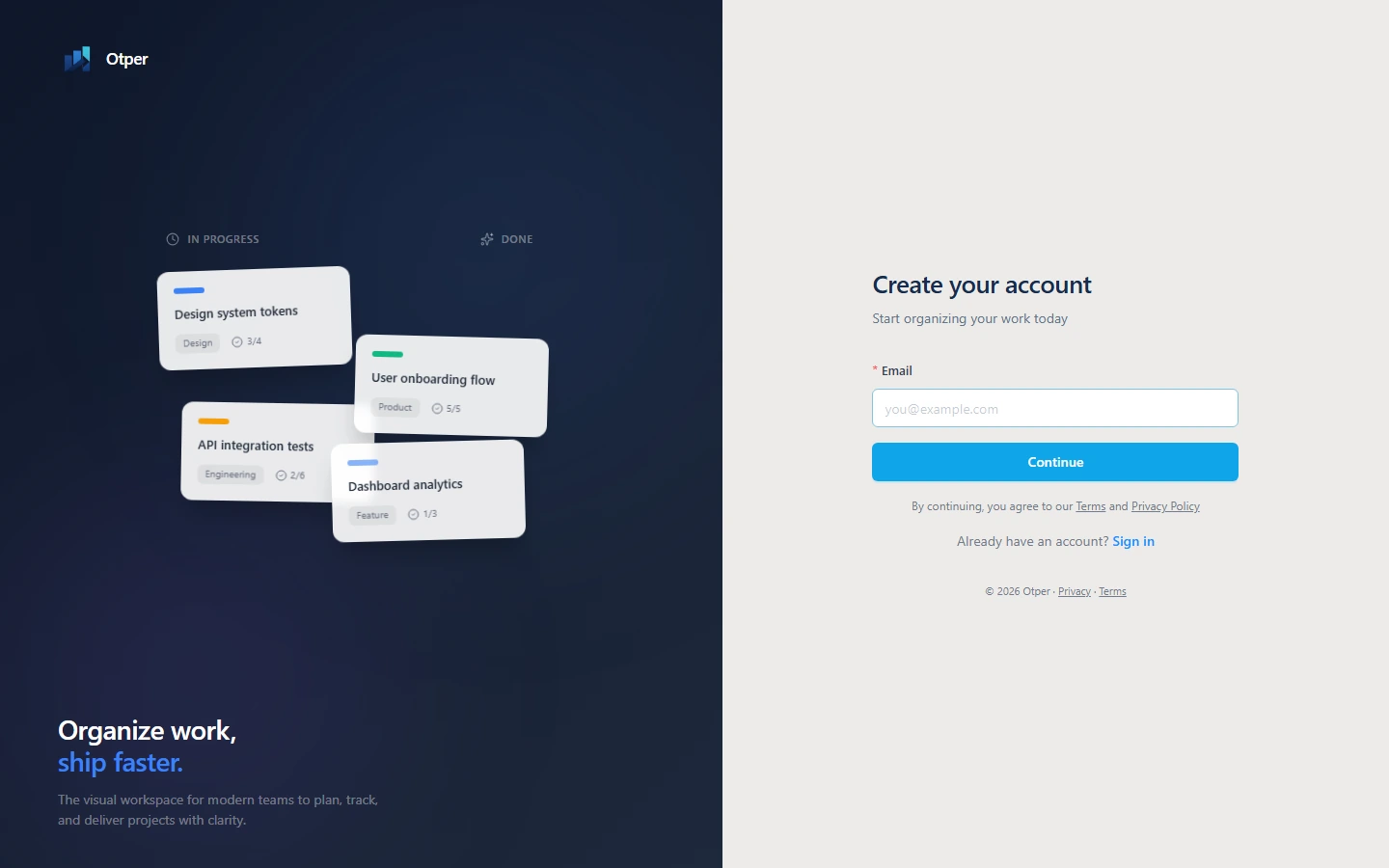
Create a verified account before inviting teammates or creating production boards. -
2. Create your first board
A board should represent one real stream of work, such as a product launch, support queue, or internal operations process. New boards start with practical default lists: Inbox, TODO, In Progress, and Done. Rename or reorder lists so the board mirrors how your team actually delivers work. Read the board setup guide.
-
3. Invite your team with the right roles
Invite teammates from team or board settings and assign a role that matches what each person needs to do. Role-based access keeps collaborators productive while protecting boards from unnecessary changes.
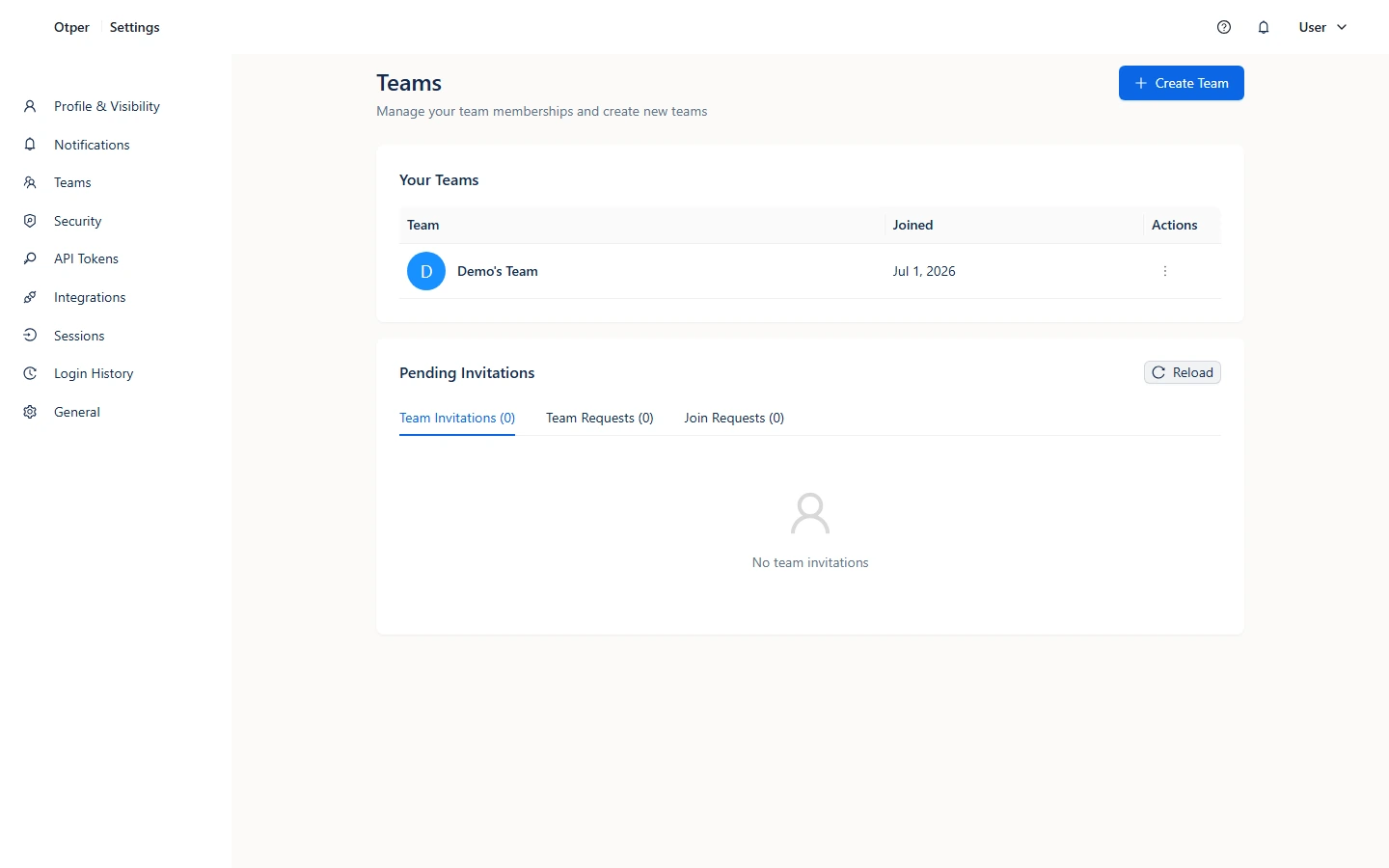
Manage team members, pending invitations, and access roles from one place. -
4. Make the dashboard your daily starting point
Once work is spread across several boards, the first question every morning is the same: what needs me today? The dashboard answers it in one screen instead of a tour of every board, so nothing waiting on you depends on remembering to go and look for it.
It is assembled from widgets you choose: Today’s Priorities, My Cards, Recently Worked On, My Boards, and Favorite Boards. Open the customise panel to show or hide each one and drag them into the order you want, so the first thing you see matches how you actually start your day - an on-call engineer leads with what is overdue, a lead with the boards they oversee. Your layout is saved to your account, so it follows you to any device you sign in from, and it is yours alone: changing it does not alter what teammates see.
Reorder and hide widgets so the dashboard opens on whatever you need to act on first. The layout is saved to your account.
Recommended first-day checklist
- Account created and email verified
- Multi-factor authentication enabled and recovery codes saved
- One board created for an active stream of work
- Lists renamed to match your workflow stages
- Team members invited with appropriate roles
- First cards created with owners, due dates, and clear descriptions
- Dashboard widgets arranged so the work that needs you is visible first
FAQ
What should I create first: a team or a board?
Create your account first, then create a board for real work. Add the team before the board becomes active so roles and ownership are clear from the start.
Can invited teammates use an existing account?
Yes. Teammates with an existing Otper account can join with it; new users can create an account from the invitation flow.
Does customising my dashboard change what my team sees?
No. The dashboard layout is per user. It is saved to your account rather than the browser, so it follows you to any device you sign in from, and it has no effect on anyone else's dashboard.
Troubleshooting
| Problem | Fix |
|---|---|
| Invite email did not arrive | Ask the teammate to check spam, then resend the invitation from team or board settings. |
| A teammate cannot access a board | Confirm they accepted the invite and have a board role that allows access. |
| Locked out after enabling MFA | Use a saved recovery code, then review the security guide. |
Related guides
Ready to set up your workspace?