Account security in Otper
Security in Otper starts with account access, then extends to sessions, API tokens, team membership, and board roles. Use these controls together to reduce account takeover risk and keep sensitive work limited to the right people.
Step 1 - Choose a secure sign-in method
Pick the strongest method your team can adopt consistently.
- Passkeys use device-backed authentication and reduce password reuse and phishing risk.
- Email magic links let users sign in without maintaining a reusable password.
- Passwords should be paired with MFA and stored in a password manager.
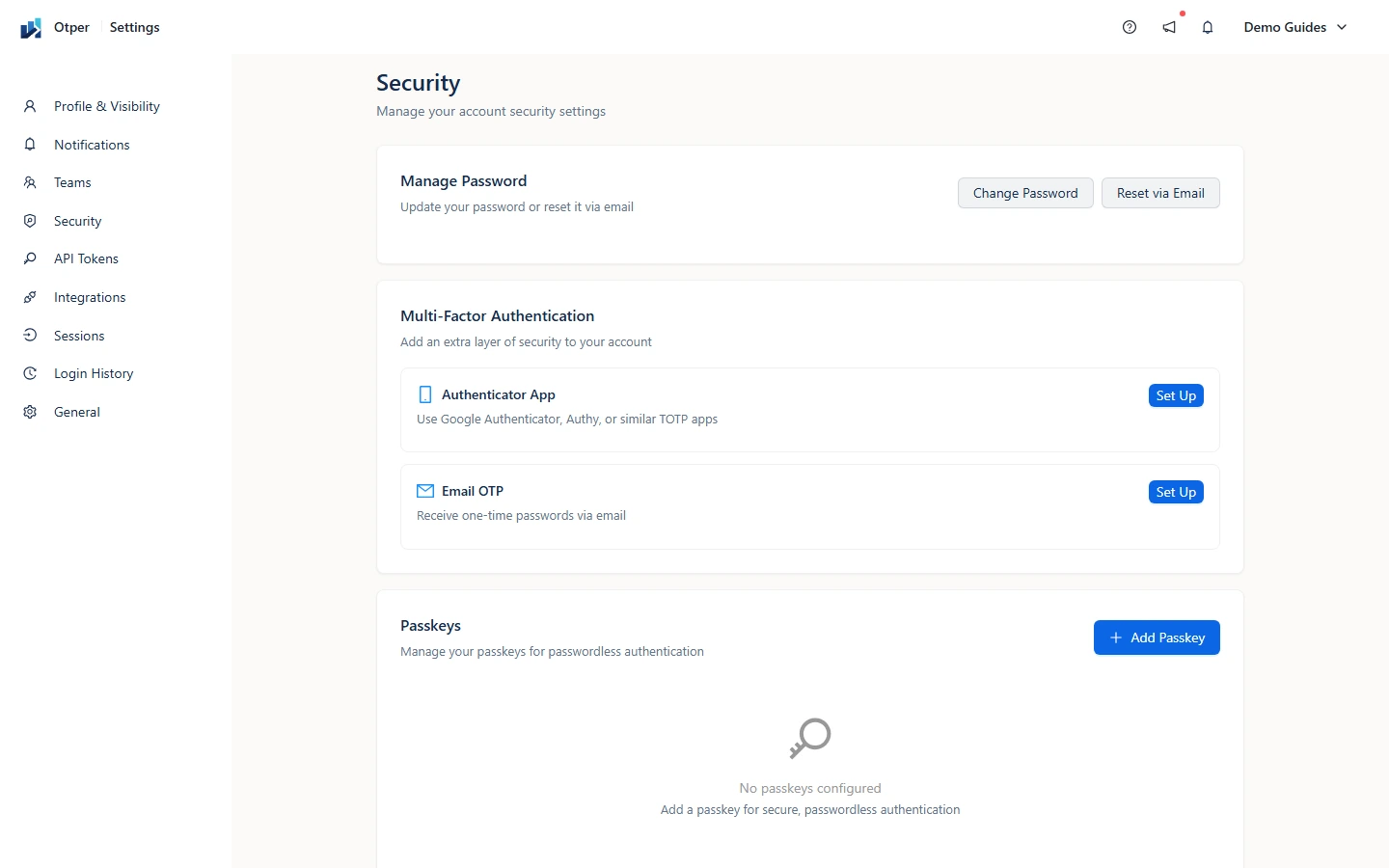
Step 2 - Enable multi-factor authentication
Multi-factor authentication adds a second proof during sign-in. Enable authenticator-app codes or email one-time codes from account security settings, then generate recovery codes and store them somewhere safe. Recovery codes are the fastest way back in if a trusted device is lost.
Step 3 - Review sessions, passkeys, and API tokens
When a device is lost or a token is no longer needed, revoke it directly instead of waiting for a broad password reset. Review active sessions, registered passkeys, and API tokens regularly, especially after role changes or offboarding.
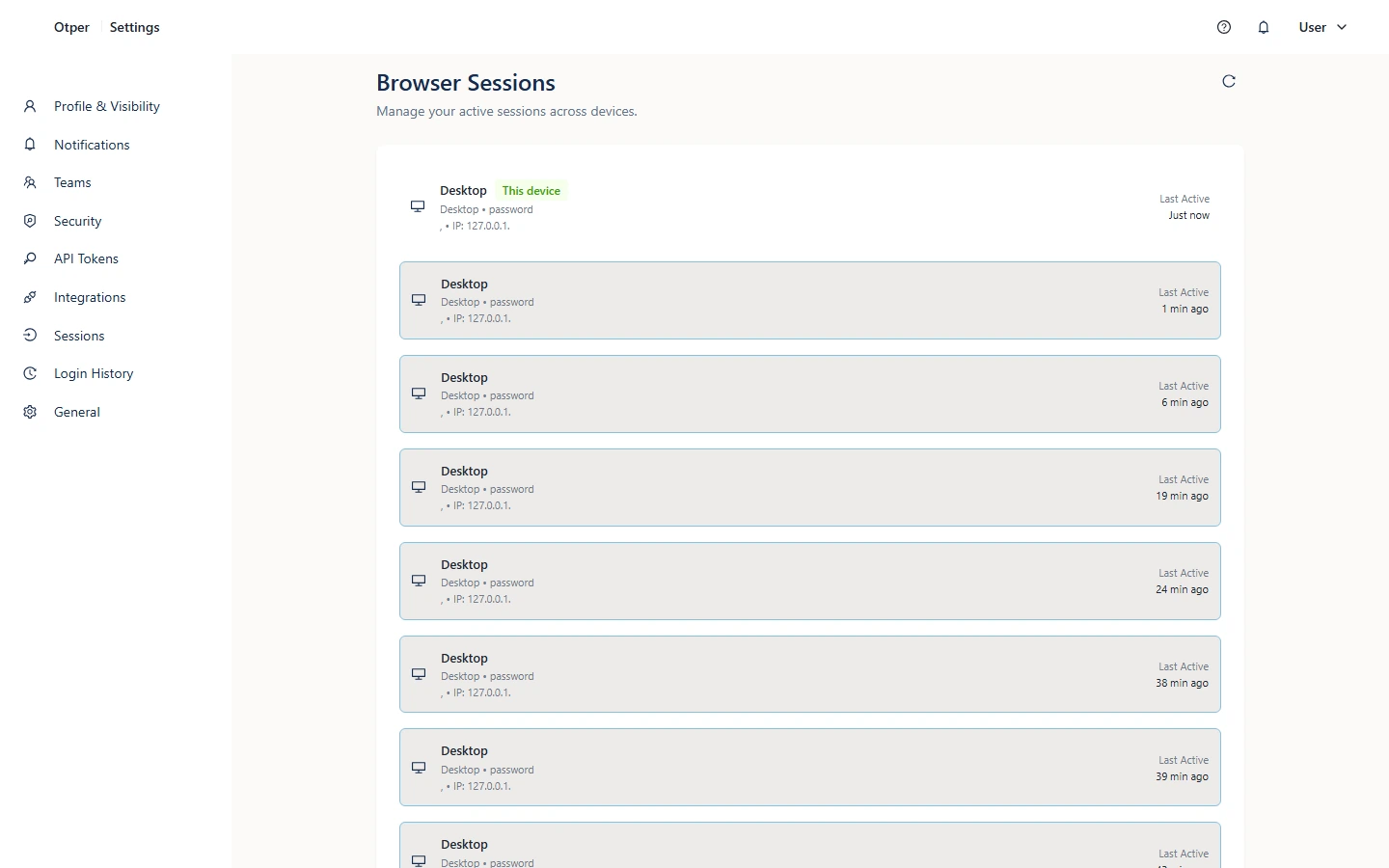
Step 4 - Keep team and board roles current
Account security only works if access is also current. Remove teammates who no longer need the workspace, adjust roles when responsibilities change, and review board membership before sharing invite links or adding external collaborators.
Security checklist
- Passkey registered on your primary device where available
- Multi-factor authentication enabled
- Recovery codes generated and stored safely
- Unused sessions and old API tokens revoked
- Board and team roles reviewed after personnel changes
- Shared invite links used only where they are appropriate
FAQ
What if I lose my authenticator device?
Use a saved recovery code, sign in, register a new factor, and generate fresh recovery codes.
When should I revoke an API token?
Revoke tokens that are unused, exposed, tied to an old integration, or owned by someone whose access has changed.
How are passwords handled?
Passwords are stored as salted bcrypt hashes. For broader data handling details, see the Privacy Policy.
Troubleshooting
| Problem | Fix |
|---|---|
| Passkey will not register | Confirm your browser and device support passkeys, then try again with the latest OS and browser updates. |
| One-time codes are rejected | Check that the device clock is set automatically, then request or generate a fresh code. |
| A former teammate still has access | Remove them from the team or board and review shared invite links and tokens. |
Related guides
Secure your workspace