Using the Otper desktop app
Boards tell you what needs doing. They do not tell you where the day went. The Otper desktop app closes that gap: it tracks time against the card being worked on, so estimates, billing, and capacity planning rest on a record captured as work happened rather than reconstructed from memory at the end of the week.
Available for Mac and Windows
Free to download, and it signs in with the Otper account you already use on the web. The Mac build requires macOS 11 or later; the Microsoft Store listing shows the current Windows requirement.
What the desktop app does
The web app is where work is planned. The desktop app is where it is done. It runs from the menu bar or system tray, and while tracking is on it records three things:
- Tracks time against a card - pick a card, start tracking, and elapsed time is attributed to it. No manual timer to remember to stop.
- Records an activity level - a rough measure of how active a session was, so long idle stretches stay visible instead of counting silently as focused work.
- Captures periodic screenshots - taken at random intervals, so a number on a timesheet has context behind it.
It is not only a timer. Your cards are listed with their labels, board, due date, and the time already logged against each one. You can search them by title, board, or label, start and pause any of them, and close one out when it is finished. Everything syncs back to the boards already in use on the web, so there is no separate timesheet to reconcile and no second source of truth to argue with.
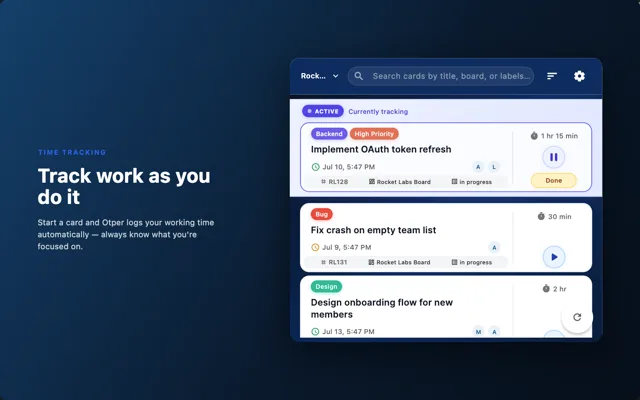
Step 1 - Install and sign in
Teams, boards, roles, and access follow the same workspace permissions as the web app, so nothing has to be provisioned twice.
macOS
Install from the Mac App Store, which places Otper in Applications for you, then open it. macOS 11 or later is required. Otper lives in the menu bar rather than the Dock - look for the icon near the clock, and click it to open the panel where everything happens. There is no separate window to hunt for.
Windows
Install from the Microsoft Store and launch Otper. It appears in the system tray near the clock. If it is not visible, check the hidden-icons arrow - Windows tucks new tray icons away by default.
Sign in, or create an account
Existing users sign in with the account they already use on the web. If you are new, the account can be created from the app itself: enter your email address and confirm the code sent to your inbox. Nothing has to be set up on the web first, which matters when you are rolling the app out to people who have never opened Otper before.
Step 2 - Grant Screen Recording on macOS
macOS requires explicit permission before any app can capture the screen. Otper needs one permission, Screen Recording, and walks you through it on first launch with a checklist and a button that opens the right pane in System Settings. Switch Otper on, then return to the app.
You may need to quit and reopen Otper afterwards. macOS caches permission decisions and does not always hand a newly granted one to a running app.
Until the permission is granted, the app shows the checklist instead of the main panel. That is deliberate: a tracker that fails quietly produces a week of blank captures that nobody notices until the invoice is questioned. If Screen Recording is later switched off, Otper notices, pauses tracking, and says why.
Step 3 - Track your first card
- Sign in with the account you use on the web.
- Choose your team, if you belong to more than one.
- Pick the card you are about to work on.
- Start tracking.
The menu bar icon carries a red dot for as long as tracking runs, so whether it is on is answerable from anywhere on screen without opening the panel. Stop tracking when you are done, or switch cards - time is attributed to whichever card was active.
Step 4 - Close the card with context
A card that has stopped moving is not the same as a card that is finished, and the difference usually lives in one person's head. Close the card from the app when the work is done and choose the outcome: Close as Completed or Close as Rejected.
The note you leave is attached to the card, so when someone asks two weeks later why something was dropped, the answer sits with the work rather than in a chat thread nobody can find. Rejected is not a state to avoid. Work gets descoped, duplicated, and overtaken by events, and recording that honestly is what keeps a board's completion figures worth reading.
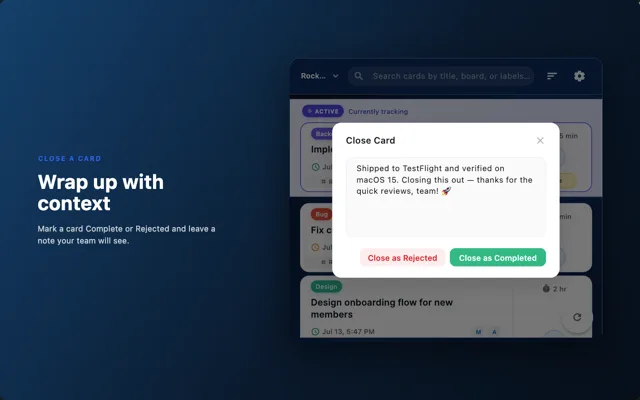
Review what was finished, by team
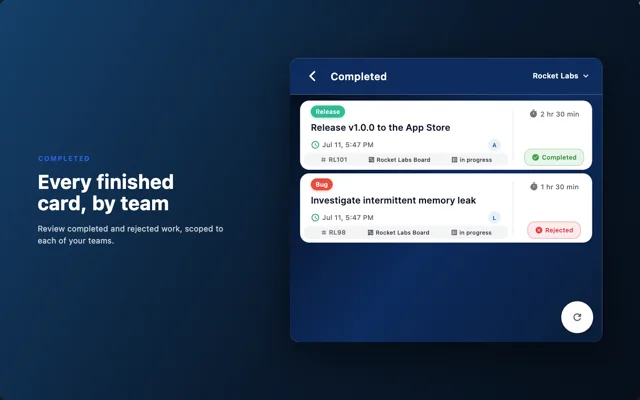
The Completed view lists finished and rejected cards for the team you have selected, each with the time logged against it. It answers the two questions that come up at the end of every week - what actually shipped, and what it cost - without exporting anything or opening the web app.
If you belong to more than one team, switch between them from the dropdown. The view is scoped to one team at a time, so a client engagement and an internal project never land in the same total.
What it records, and what it does not
Worth being precise about, because "activity tracking" means very different things in different tools, and the gap between what people assume and what is true is where trust is lost.
| Recorded while tracking is on | Never recorded |
|---|---|
| Time elapsed against the active card | What you type - no keystrokes, no content of your work |
| Mouse click counts | Which applications or websites you use |
| An activity level, indicating an active or idle session | Anything at all when tracking is stopped |
| Screenshots at random intervals | Audio, camera, or location |
Screenshots capture the full screen, including additional monitors. If a second display holds personal material, move it before starting a session.
Privacy and what your team can see
Otper is a team tool, so it is fair to be direct about who sees what. Your team administrator can view your screenshots and activity data. The app states this before any permission is granted, and the menu bar indicator shows whenever a session is live.
You control when it runs. Tracking never starts on its own. It begins when you start a card and ends when you stop. Revoking Screen Recording in System Settings stops capture immediately, without uninstalling anything.
If you are deploying Otper across a team, telling people what is collected and why is your responsibility as administrator, and in some regions a legal obligation. Our security page covers how the data is stored and protected, and the account security guide covers the access controls around it.
Working offline
Losing a connection does not stop the clock. Otper keeps recording locally and uploads once you are back online, so a dropped signal on a train costs you the Wi-Fi, not the afternoon.
Settings worth knowing
Everything below lives on the Profile screen.
- Auto-launch at startup - off by default, so Otper opens with your computer only if you decide it should. It never switches itself on.
- Set password - if you signed up with an emailed code and never set a password, Otper prompts you to. A password enables password sign-in and is what confirms sensitive changes to your account.
- Delete account - removes your account and the data attached to it permanently. It is confirmed with your password and cannot be undone.
Rollout checklist
- Team briefed on what is recorded and who can see it, before install day
- App installed and signed in with an existing Otper account
- Screen Recording granted on macOS, and the app relaunched once
- A first card tracked end to end, closed with a note, and the time checked on the board
- Secondary monitors reviewed for anything personal that a screenshot would capture
FAQ
Where do I download the desktop app?
It is out for both platforms and free to download: the Mac build is on the Mac App Store and the Windows build is on the Microsoft Store. Sign in with the same workspace account you use on the web.
Do I need to keep the app window open?
No. Otper runs from the menu bar or system tray. Close the panel and tracking continues.
Does Otper track me when I am not working on a card?
No. Nothing is recorded when tracking is stopped. There is no background monitoring between sessions.
Does it record what I type?
No. Otper does not capture keystrokes or the content of your work, and it does not record which applications or websites you use.
Can I delete a screenshot?
Screenshot retention is managed by your team administrator. Contact them about a specific capture.
What is the difference between closing a card as Completed and as Rejected?
Completed means the work was delivered. Rejected means it was not - descoped, duplicated, or overtaken by events. Both close the card and both keep the note you leave, which is what stops completion figures from quietly flattering the board.
Can I use it on more than one computer?
Yes. Sign in on each. Track on one at a time so time is attributed to a single card cleanly.
What happens to my data if I delete my account?
Deleting your account removes it and its associated data permanently. It is confirmed with your password and cannot be undone.
Troubleshooting
| Problem | Fix |
|---|---|
| The app is not in my Dock | Expected on macOS. Otper lives in the menu bar, near the clock. |
| Screenshots are not being captured | Enable Screen Recording for Otper in System Settings, Privacy & Security, then quit and reopen the app. |
| Permission granted, but the checklist still shows | Quit Otper completely and reopen it. If it persists, remove it from the Screen Recording list, re-add it, and relaunch. |
| Time is not appearing on my board | Check your connection. Otper buffers locally and uploads on reconnect, so offline time appears once you are back online. |
| The menu bar icon has a red dot | Tracking is currently running. Open the panel and stop it if that is not intended. |
Related guides
Get your boards ready, then install the desktop app