Workflow automation for Kanban teams: practical examples that keep work moving
Workflow automation is most useful when it removes repetitive board upkeep without hiding responsibility. A good automation does not decide strategy for the team. It handles predictable steps: moving a card, adding a label, posting a reminder comment, assigning a person, setting a due date, or closing work that matches a clear rule.
Automation is one piece of running Kanban at team scale - see the complete guide to Kanban for teams for columns, WIP limits, ownership, and the rest of the setup.
What workflow automation means in practice
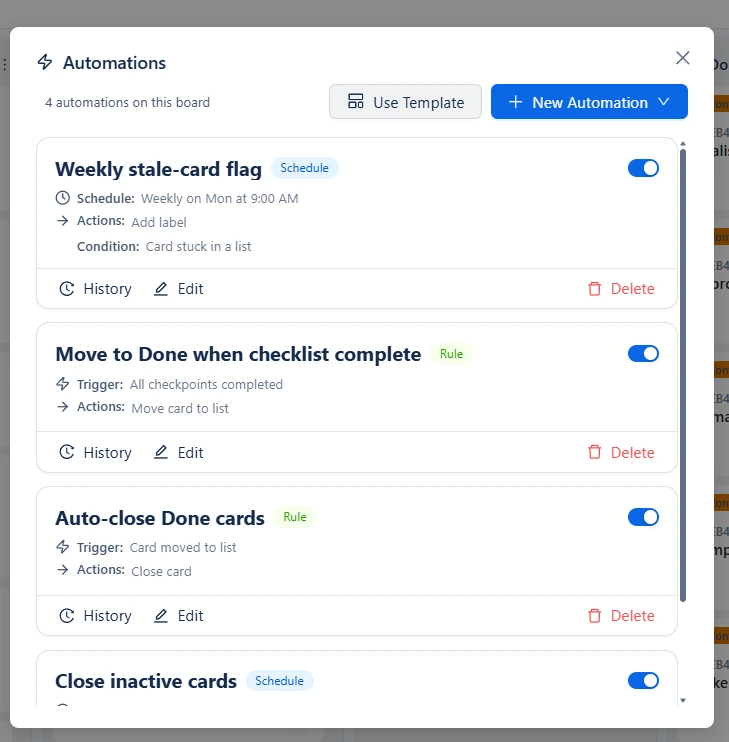
A practical automation has two parts: when this happens and do this next. In Otper, automations can be event-based rules or scheduled checks. Rules react to events such as a card being created, moved to a list, assigned, labeled, reaching a due date, or completing all checklist items. Scheduled automations run on a daily, weekly, monthly, or yearly rhythm and look for cards that match conditions such as overdue, unassigned, inactive, stuck in a list, or all cards in a list.
Useful automation examples for Kanban teams
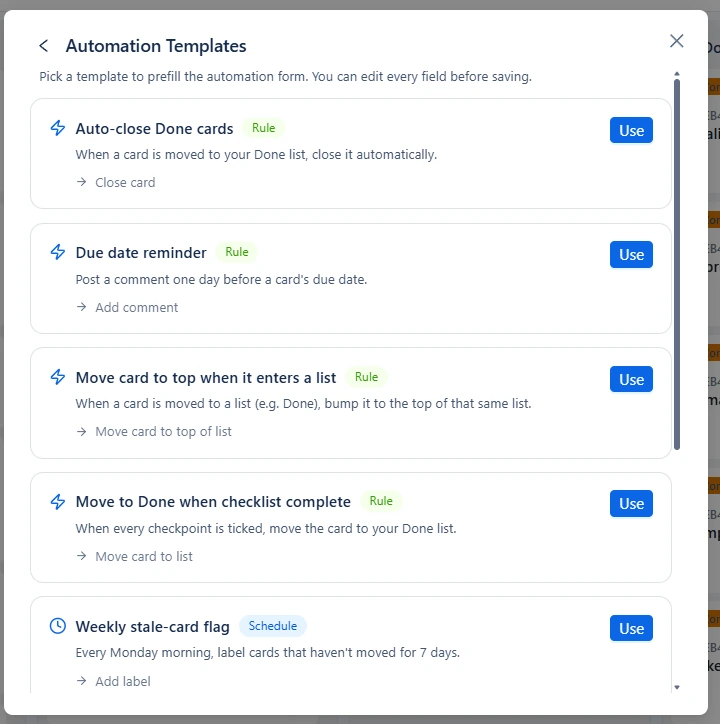
1. Add a due-date reminder comment
A due-date trigger can post a comment before or at the due date. This keeps the reminder on the card, where the owner and collaborators can see the context, instead of creating a separate chase message.
2. Move a card when checklist work is complete
When all checklist items on a card are complete, an automation can move the card to the next list. This is useful when your board has a clear handoff stage, such as Review or Done.
3. Flag stale cards on a schedule
A weekly scheduled check can find cards that have not moved for a chosen number of days, then add a label or comment. The goal is not to blame the owner; it is to notice quiet work before it becomes forgotten work.
4. Comment on overdue cards
A scheduled overdue-card check can post a comment asking for an update or a new plan. This keeps the overdue signal visible on the card itself and gives the team a repeatable recovery habit.
5. Assign or unassign people when a rule matches
Automations can assign or unassign users when a card matches the rule. Use this carefully for routine ownership patterns, such as assigning a triage owner when a card enters an intake list.
Actions Otper automations can take
To avoid confusion, it helps to think in terms of the actual actions available. Otper automations can move cards to a list, move cards to the top or bottom of a list, add or remove labels, assign or unassign users, set a due date, mark a due date complete, add a comment, or close a card.
How to choose what to automate
Automate work that is repetitive, rule-based, and easy to explain. Keep human judgment for quality, prioritization, customer decisions, and exceptions. A board with a few clear automations is easier to trust than a board full of rules nobody understands.
- Start with one template or one common maintenance task.
- Use labels and comments when you want visibility without changing status.
- Use card moves only when the workflow rule is obvious to the team.
- Review automation logs so you know what ran and whether it helped.
- Pause or edit automations when the workflow changes.
Automation should support accountability
The best automations make ownership clearer. They do not replace the person responsible for the work; they reduce the small maintenance steps around that responsibility. Clear boards still need clear stages, owners, due dates, and labels. Automation simply helps those signals stay current.
For a stronger foundation, pair automations with a well-structured board and useful reporting. Start with setting up a Kanban board, then use Kanban analytics to see whether the workflow is improving.
FAQ
Do I need technical skills to set up workflow automation?
No. In Otper, automation is built around rule and schedule settings: choose a trigger or condition, then choose the action the board should take.
What should I automate first?
Start with low-risk upkeep such as due-date reminder comments, moving cards when checklist items are complete, or flagging stale cards.
Can automations move cards between lists?
Yes. Otper automations can move cards to a chosen list, to the top of a list, or to the bottom of a list.
Can automations add labels or comments?
Yes. Automation actions include adding labels, removing labels, and posting comments on matching cards.
How many automations should a team use?
Start with one or two clear automations, review their logs, and add more only when the rule is easy for the team to understand.
Related reading
- Slack integration for Kanban boards
- Using Kanban analytics to find bottlenecks and overdue work
- Mobile project management without losing control
- Kanban board setup: a step-by-step guide
- Project management with Otper
Start with one useful automation
Choose one repetitive board upkeep task in Otper, then review the logs before adding more.
Get started with Otper