Mobile project management: how to update tasks without losing control
Mobile project management is not about doing detailed planning from a small screen. It is about keeping the project record accurate when work happens away from the desk. The most useful mobile updates are simple and timely: check a board, update a card, comment in context, attach a file, or respond to a mention before the work drifts.
Mobile is one piece of keeping a shared board reliable - see the complete guide to Kanban for teams for setup, WIP limits, ownership, and handoffs across time zones.
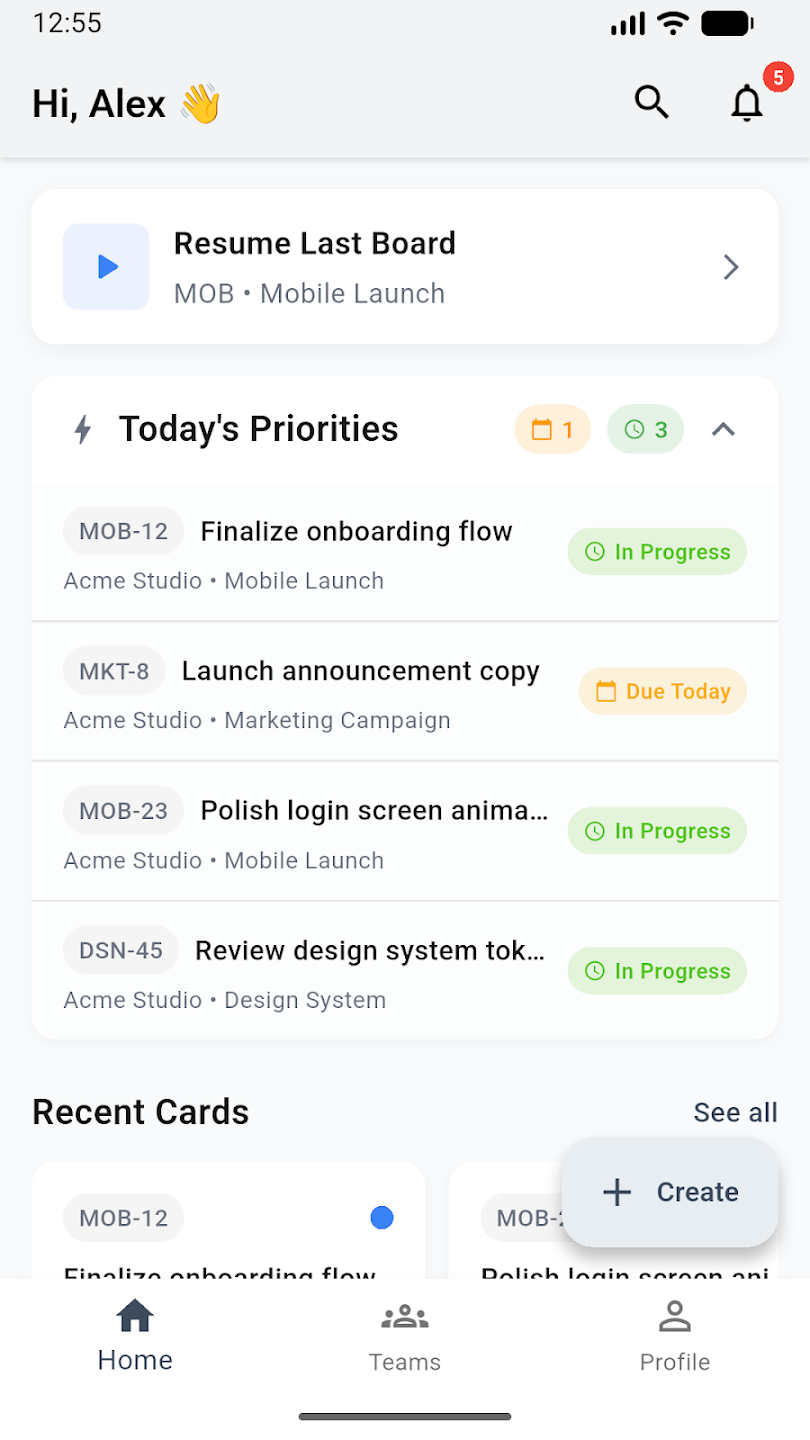
The goal: stay responsive without creating a second system
The risk with mobile work is not the phone itself. The risk is that updates happen somewhere else: a text message, a private chat, a photo in a personal gallery, or a quick comment that never reaches the project record. When updates stay inside boards and cards, the team keeps one source of truth.
What mobile is useful for
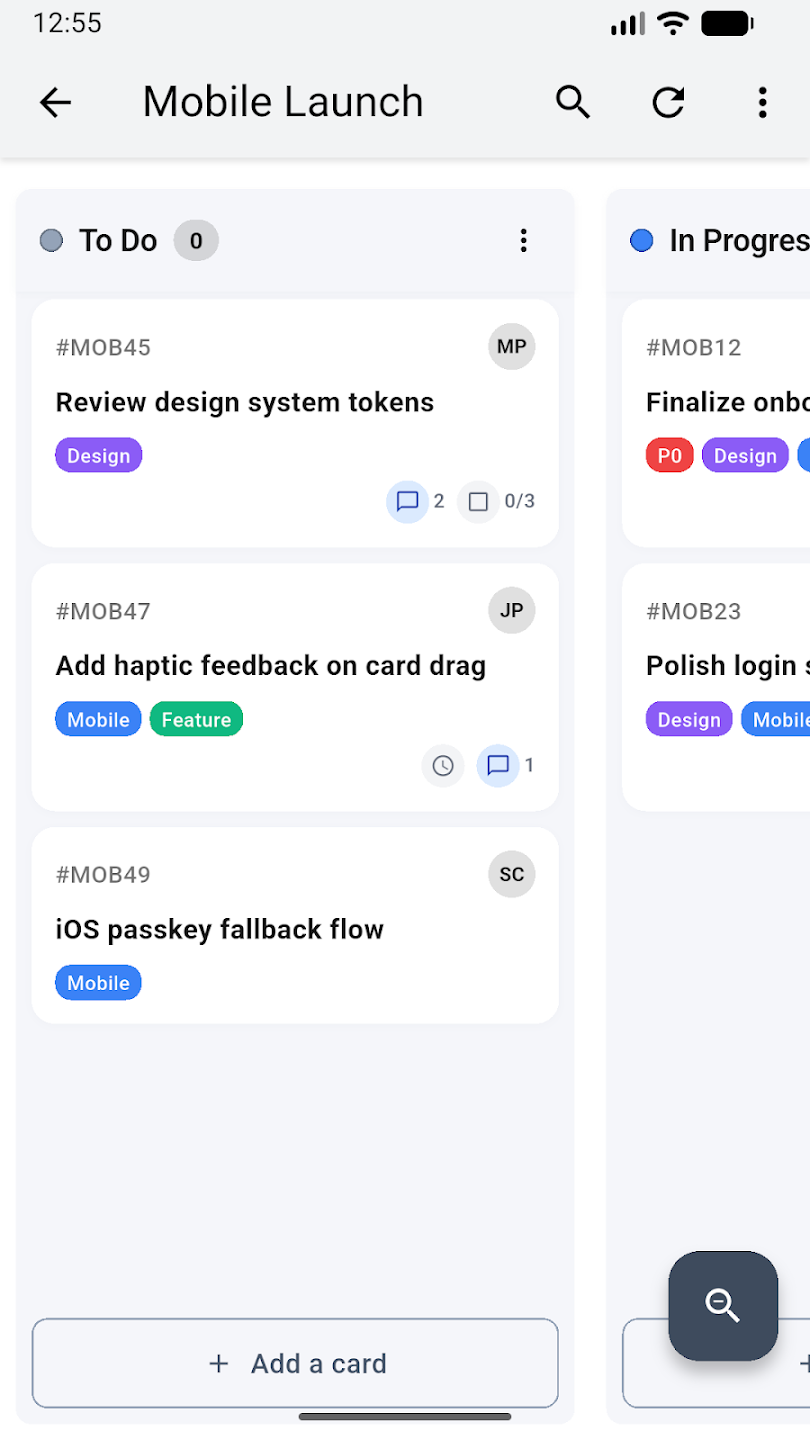
- Reviewing boards - check what is active, waiting, overdue, or ready for review.
- Updating cards - change status, edit details, check off checklist items, or adjust dates.
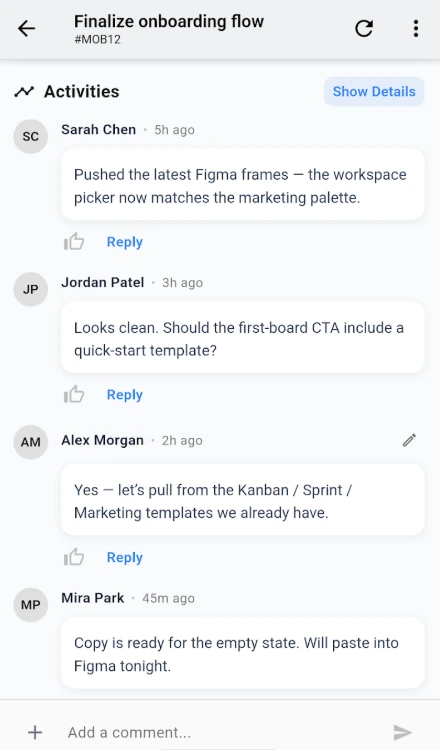
- Commenting in context - answer questions and capture decisions on the card where the work lives.
- Responding to mentions - handle timely requests without moving the discussion into a side channel.
- Attaching files or photos - add proof, references, or field evidence directly to the relevant card.
How mobile keeps control in place
Flexibility should not weaken access control. In Otper, mobile uses the same account and workspace access model as the web app. If someone can view or update a board, that access comes from their account and role, not from the device they are holding. This keeps mobile useful for quick work without turning it into a separate, less controlled process.
Where mobile helps different teams
Managers
Review progress between meetings, answer blockers, and check whether high-priority work is moving.
Field and operations teams
Attach photos or files from the location where work happens and update job status while the context is fresh.
Remote and distributed teams
Respond to mentions, review changes, and keep async collaboration moving across time zones.
Founders and stakeholders
Check progress and comment on the right card without interrupting the structure of the board.
Mobile habits that keep work clean
- Update the card, not a side chat, when the change affects the work.
- Attach evidence to the card that needs it, not to a separate thread.
- Use mentions when someone needs to act or answer.
- Adjust due dates when commitments change, so reports and priorities stay useful.
- Keep notifications focused on the events that actually need your attention.
Make mobile part of a larger workflow
Mobile access works best when the board is already well organized. Clear lists, owners, due dates, labels, and comments make each mobile update meaningful. Add workflow automation for predictable upkeep, such as due-date comments or stale-card labels, and mobile becomes a way to respond at the right moment instead of rebuilding structure on the fly. For setup details, see the mobile app guide.
FAQ
What should teams use mobile project management for?
Use mobile for timely updates: reviewing boards, updating cards, commenting, responding to mentions, adjusting dates, and attaching files or photos.
Will mobile updates get lost or disorganized?
They are much less likely to get lost when updates are made on the card instead of in side chats or scattered messages.
Are permissions different on mobile?
No. The mobile app uses the same account and workspace access model as the web app.
How do I avoid notification overload on mobile?
Tune notification preferences so high-value events such as mentions, assignments, and due dates stay visible without turning every update into an alert.
Can field teams attach photos or files from a phone?
Yes. Grant the relevant camera, photo, or file permission when prompted, then attach the media to the card that needs it.
Related guides
Take Otper with you
Use the mobile app to keep updates, comments, files, and decisions attached to the right work.