Slack project tracking: how to track work in Slack, and where it stops
Requests arrive in Slack, decisions happen in threads, and a week later nobody is sure what was agreed or who is on it. Slack project tracking fixes that only if every piece of work ends up somewhere with an owner, a date and a status. This post covers what Slack tracks on its own, what it misses, and how to set up tracking that holds. For the wider picture, read our project management in Slack — full guide.
Can you track projects in Slack? (short answer)
Partly. Messages and Slack Lists record the work: a list item can carry an assignee, a due date and a status, and a list can be shown as a board. Tracking needs more than a record, though. It means knowing progress, owners, deadlines and what has gone quiet, and Slack does not flag stale work or report on flow. So you either add team rules on top of Slack, or connect a board that does the tracking.
What "tracking" actually means on a project
A piece of work is tracked when anyone can answer five questions about it without asking in a thread. Where any of these is missing, you are storing work, not tracking it:
- Owner - one person accountable for the next step.
- Due date - when it is needed, if timing matters.
- Status or stage - where it is: to do, in progress, waiting, done.
- Last activity - when it last moved, so silence is visible.
- Progress - how far along it is, such as checklist items done.
Most Slack setups cover the first three once work is in a list. The last two are where tracking in Slack usually falls down.
What you can track natively in Slack (2026)
| Feature | Native? | Where it stops |
|---|---|---|
| Messages and threads | Yes | No owner, due date or status; requests scroll away |
| Slack Lists (table or board layout) | Yes, on every plan including Free | Each list is its own board; no work-in-progress cap, no flag for quiet items |
| Canvases | Yes | A document, not a tracker; owners and dates only if you embed a list |
| Reminders | Yes | A nudge at a set time, not a status recorded on the work |
| List automations and workflows | Yes | Run on dates, schedules or field changes; nothing flags an item that simply stopped moving |
| Reporting | Workspace analytics only | No throughput or completion-time reporting on tracked work |
Based on Slack's help-centre documentation, checked October 2026. For the column-by-column detail of Slack's board layout, see our breakdown of the kanban board in Slack.
Step-by-step: set up real project tracking from Slack
These steps work whether you track in a Slack list or on a connected board.
- Pick one intake channel. When requests start in one place, you can tell when one was missed.
- Choose one home for tracked work. A Slack list or a connected board, not both. Two trackers means two versions of the truth.
- Make the five fields mandatory by habit. Nothing counts as tracked until it has an owner, a status and, where timing matters, a due date.
- Convert messages at triage, daily. A named person turns each request into a tracked item or declines it in the thread. Nothing stays only as a message.
- Send selected updates back to the channel. Post the events people act on and leave out the rest, or the channel gets muted.
- Review last activity weekly. Ask what moved, what slipped and what has not moved at all.
The connected-board pattern
If you want a kanban board in Slack's flow without moving the conversation, the conversation stays in Slack and the tracking moves to a board linked to the channel. With Otper, which connects to your Slack workspace:
- Open a board's Slack settings, choose Connect Slack and authorize Otper in Slack, then pick the channel and which events it receives.
- Each person runs
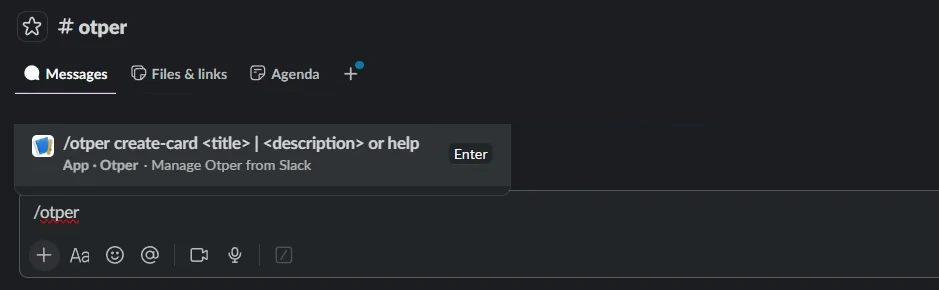
/otper loginonce to link their account. Until they do, no card is created on their behalf. /otper create-card Title | description, or Otper Actions from a message's menu, turns a request into a card. With the shortcut, the message's first line becomes the title and the rest the description.- The card lands in the first list of each board linked to that channel, recorded as created by you. It has no owner yet: assigning one is still the triage step.
- Card created, card moved between lists and the other events you chose post back to the channel, so the team sees progress without opening the board.
Once their account is linked, people can also get their own Otper notifications for boards connected to Slack as Slack direct messages, by switching on Slack in their notification settings. The Slack setup guide walks through each step.
What Slack alone can't track (and the workarounds)
Work-in-progress limits
Nothing in Slack caps how many items sit in a column, so "In progress" quietly grows until everything is half done. The Slack-only workaround is a team rule - for example, no more than three items in progress per person - checked by eye at standup. On a board, the limit can be enforced: in Otper, a soft limit turns the list amber as a warning, and a hard limit refuses new cards until something leaves.
Stale and idle items
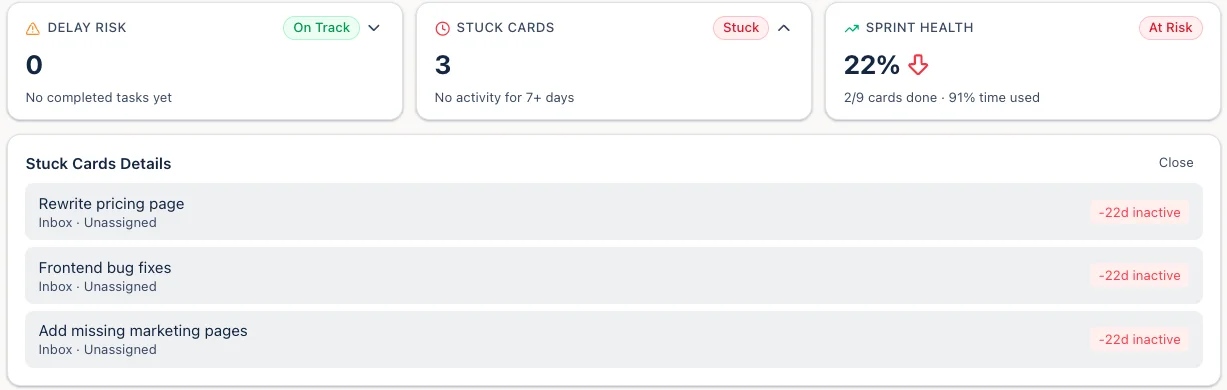
Slack reminders key off dates, so an item that is not due yet but has stopped moving raises no alarm. Without a tool, the fix is a weekly sweep of every open item. With a connected board, the check runs for you: Otper's reports flag any card with no activity for seven days or more, with its list and assignee, and the Weekly stale-card flag automation can label those cards on the board.
Throughput across channels
Each Slack list stands alone, so "are we finishing work as fast as it arrives?" has no answer across channels or projects. By hand, you would count items created and completed each week in a spreadsheet. Otper reports cards created against cards completed for any set of boards - per day, week or month depending on the date range - and compares boards side by side.
Weekly status reports
Slack can prompt people for an update, but someone still writes the summary from memory. With a board, the numbers already exist: set the Otper report to the last seven days, read off what finished, what is overdue and what is stuck, and export it as CSV or PDF to share in the channel. The export is a manual step; reports are not posted to Slack automatically.
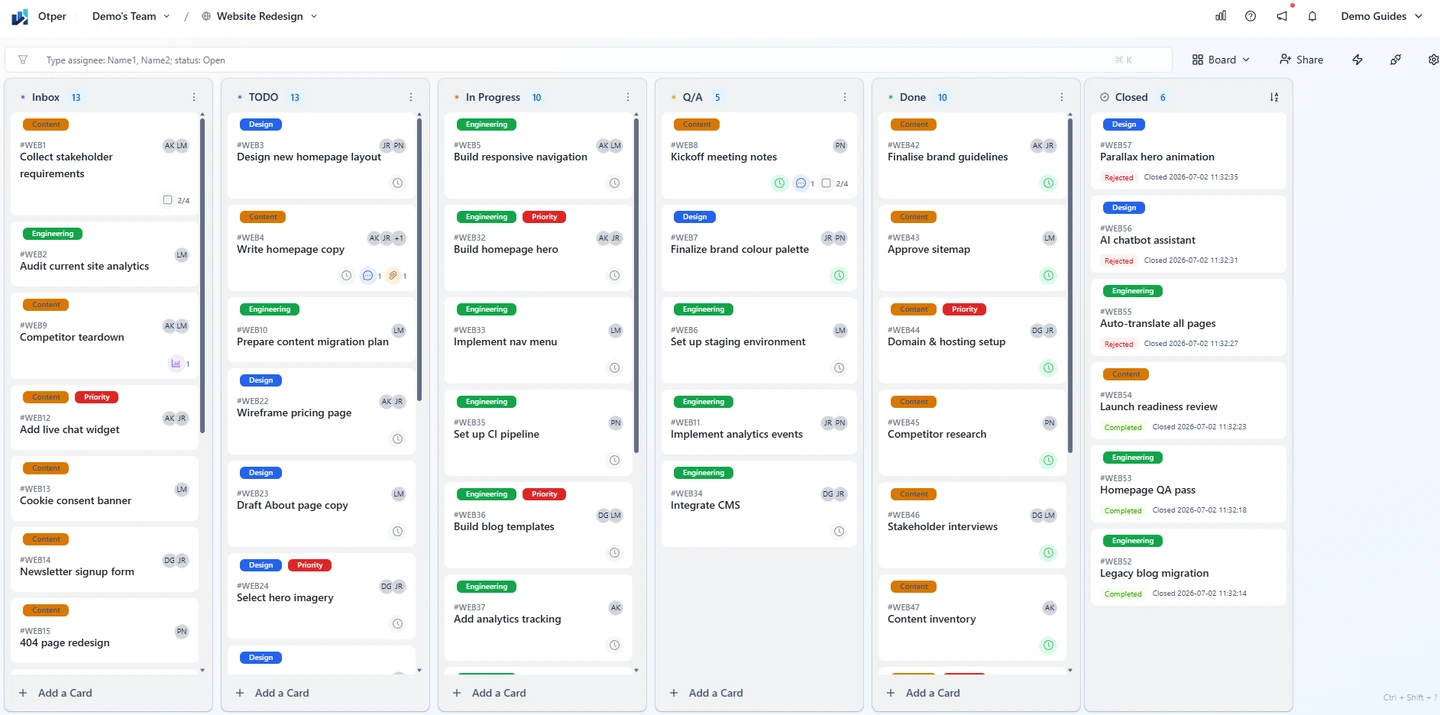
These are the automatic activity flags and reporting that turn a channel full of requests into tracked work.
Keep the conversation in Slack. Track the work on a board.
Otper connects to your Slack workspace and works on the Free plan for up to 3 teammates.
FAQ
Does Slack track projects?
Partly. Slack Lists gives each item an assignee, a due date and a status field, and can show a list as a board. What Slack does not do is flag work that has gone quiet, cap work in progress, or report how work is flowing across lists and channels. For that, most teams connect a board.
Can you track deadlines in Slack?
Yes. Slack Lists items have a due-date field, and list automations can send due-date reminders. For a single message, Slack reminders can nudge you at a set time. What deadlines alone miss is work that is not late yet but has stopped moving.
What app adds project tracking to Slack?
Several. Trello, Asana and Jira each have a Slack app for their own tool. Otper connects to your Slack workspace: /otper create-card or the Otper Actions message shortcut turns a message into a card, linked channels get the board updates you choose, and the board adds owners, stuck-work flags, WIP limits and throughput reporting. It works on the Free plan for up to 3 teammates.
Is Slack Lists enough for a small team?
Often, yes. If two or three people share simple work in one channel and an assignee plus a due date covers what you track, Slack Lists is enough. It stops being enough when work spans several projects, passes between owners, or someone needs to know what has stalled.
How do you see stalled work in Slack?
Slack alone has no flag for an item that has gone quiet, so you need a habit or a tool. The habit: a weekly sweep of every open item, asking what moved since last week. The tool: a connected board such as Otper, whose reports flag every card with no activity for seven days or more, with its list and assignee.