How to set up a Kanban board for project management
When work lives in chat threads, documents, and inboxes, no one can answer the two questions that matter most: what is being worked on right now, and who owns it? A Kanban board fixes that by giving your team one shared, visual picture of every task and its status. This guide walks through setting up a board you will actually keep using, from workflow stages to accountable cards.
What a Kanban board is (and why it works)
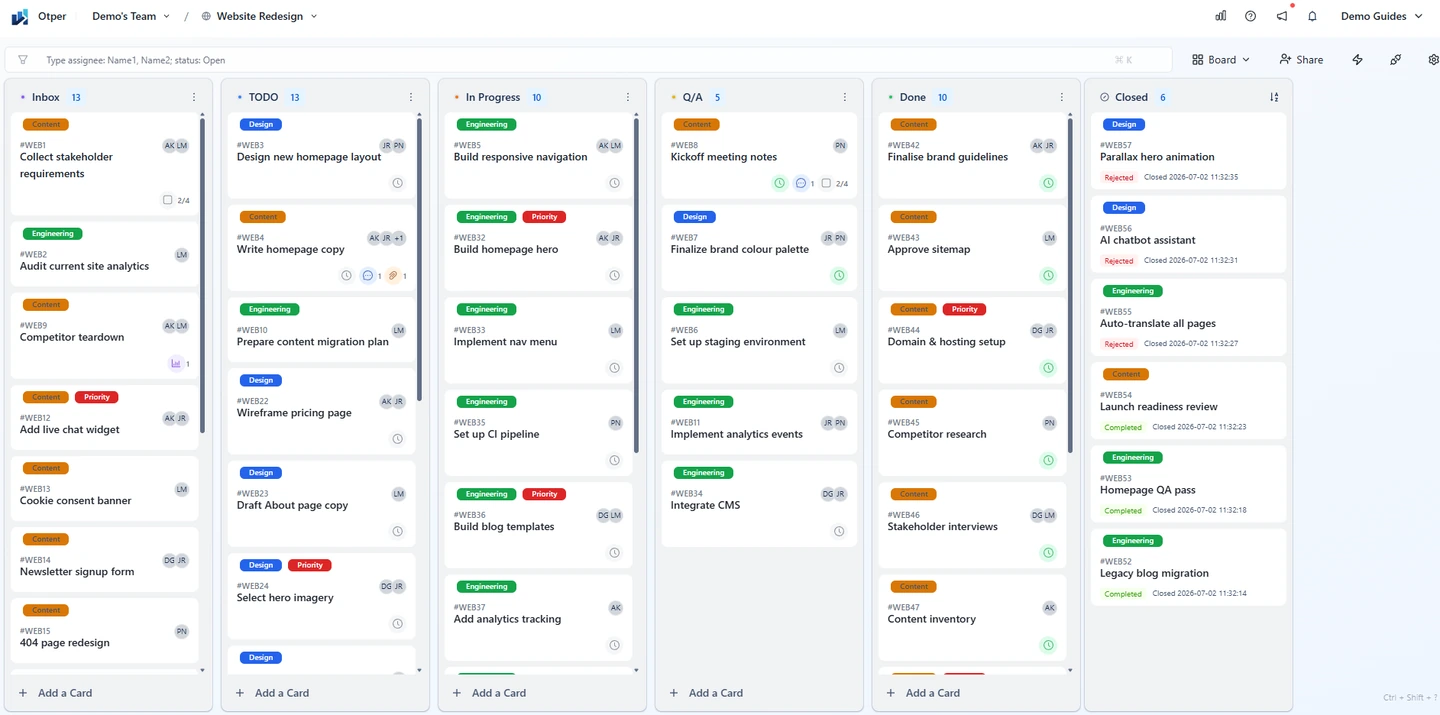
A Kanban board represents a stream of work as cards that move left to right through stages. The board is the project, the lists (or columns) are the stages work passes through, and each card is a single task. Because status is expressed by position, anyone can glance at the board and see what is in progress, what is waiting, and where work is piling up. That visibility is the whole point: it replaces status meetings and “where are we on this?” messages with something everyone can read at a glance.
Step 1: Define your workflow stages first
Before creating anything, map how work actually moves through your team, not an idealized process. Start with four or five stages and add detail only when a stage is hiding too much. A dependable starting point is:
To Do → In Progress → Review → Done
Adjust the names to fit how your team really operates:
- Agency: Backlog → Briefed → In Progress → Client Review → Approved
- Software team: Backlog → In Development → Code Review → QA → Released
- Startup / product team: Ideas → This Week → In Progress → Review → Done
Step 2: Create the board and its lists
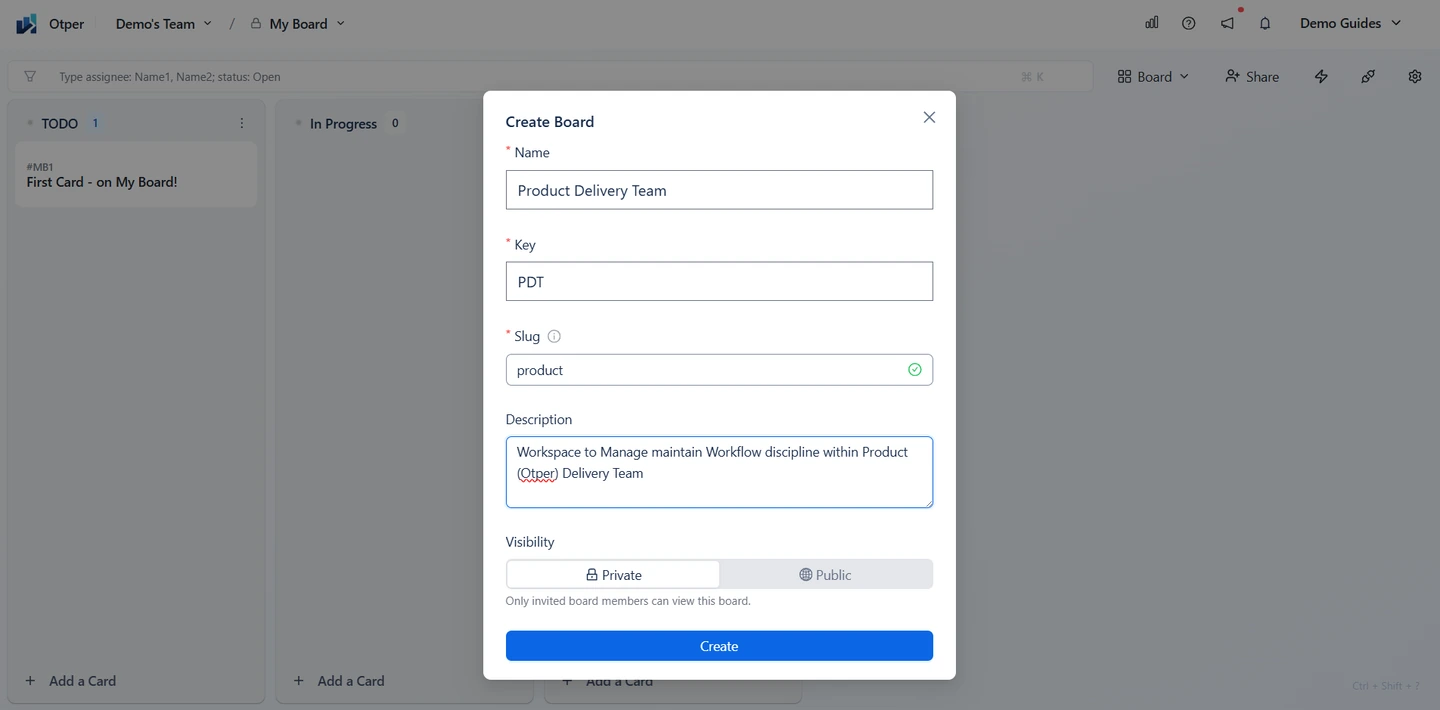
Create one board per project, product, or ongoing stream, rather than one giant board for everything. Separate boards stay readable and keep each project’s progress meaningful. When you create a board in Otper, you give it a name and can customize its key and slug to short, unique values: the key prefixes every card ID on the board (for example, WEB-12) and the slug helps form board links, so choosing clear values now keeps cards and URLs easier to recognize later. Then add or rename lists so the columns mirror the process you mapped in Step 1.
Step 3: Write cards that hold accountability
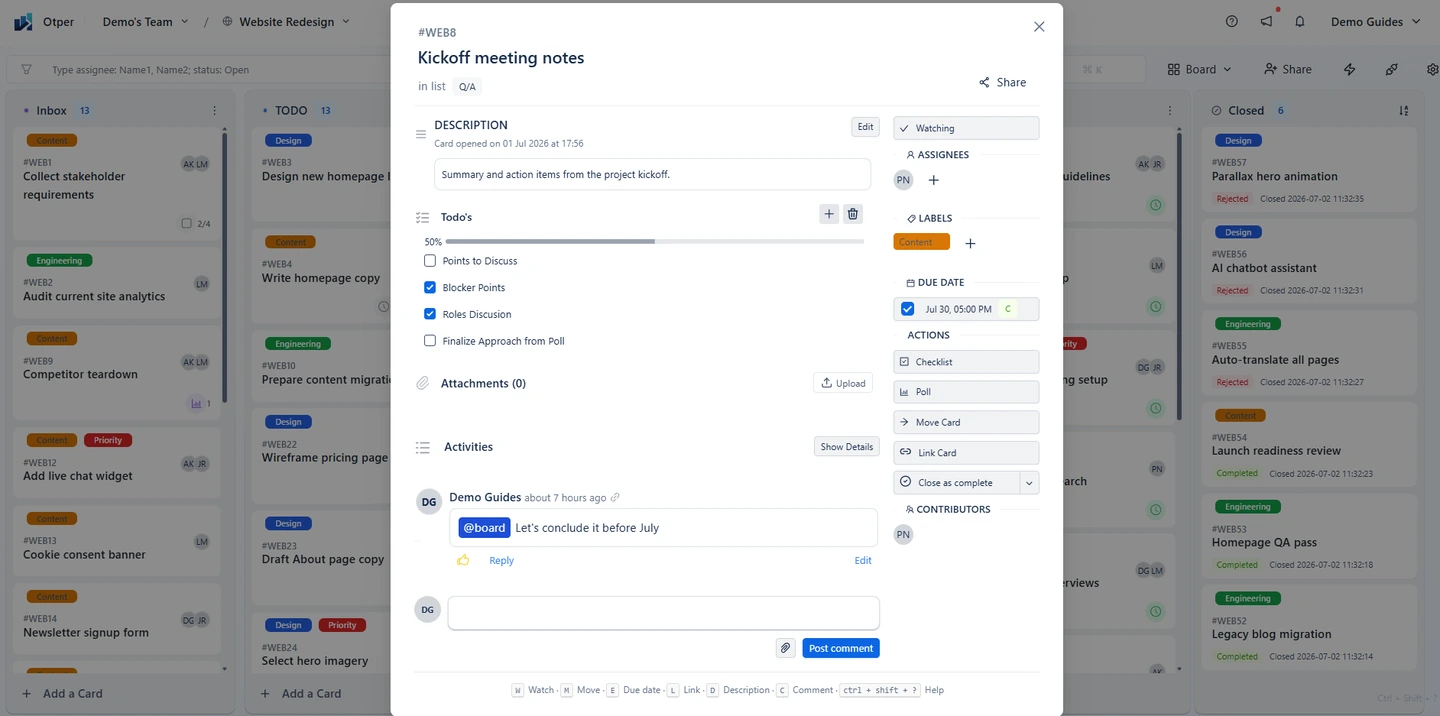
A good card describes one unit of work with a clear, specific title. What turns a card from a sticky note into an accountable record is the detail you attach to it:
- Owner — assign a responsible member so there is never a “who is doing this?” moment.
- Due date — set one wherever there is a real commitment, making deadlines visible.
- Labels — tag priority, workstream, or type so the board reads at a glance.
- Checklists — break the definition of done into steps the owner can tick off.
- Attachments and links — keep the files and references on the card, not buried in DMs.
- Comments and @mentions — keep questions and decisions attached to the work itself.
In Otper, each card holds all of this: assign members, add a due date, apply labels, add a checklist, attach files, and discuss in comments. The result is a task anyone can pick up without a handover meeting.
Step 4: Set a few simple team rules
A board only stays useful if the team agrees on how to use it. Three rules cover most situations:
- Limit work in progress. Cap how many cards sit in a stage at once so work finishes instead of piling up.
- Define “Done.” Agree what has to be true for a card to move to the final list, so it means the same thing to everyone.
- Decide who moves cards and when. Owners update their own cards; the board is reviewed together in a short standup or async check-in.
Step 5: Adapt views as the project grows
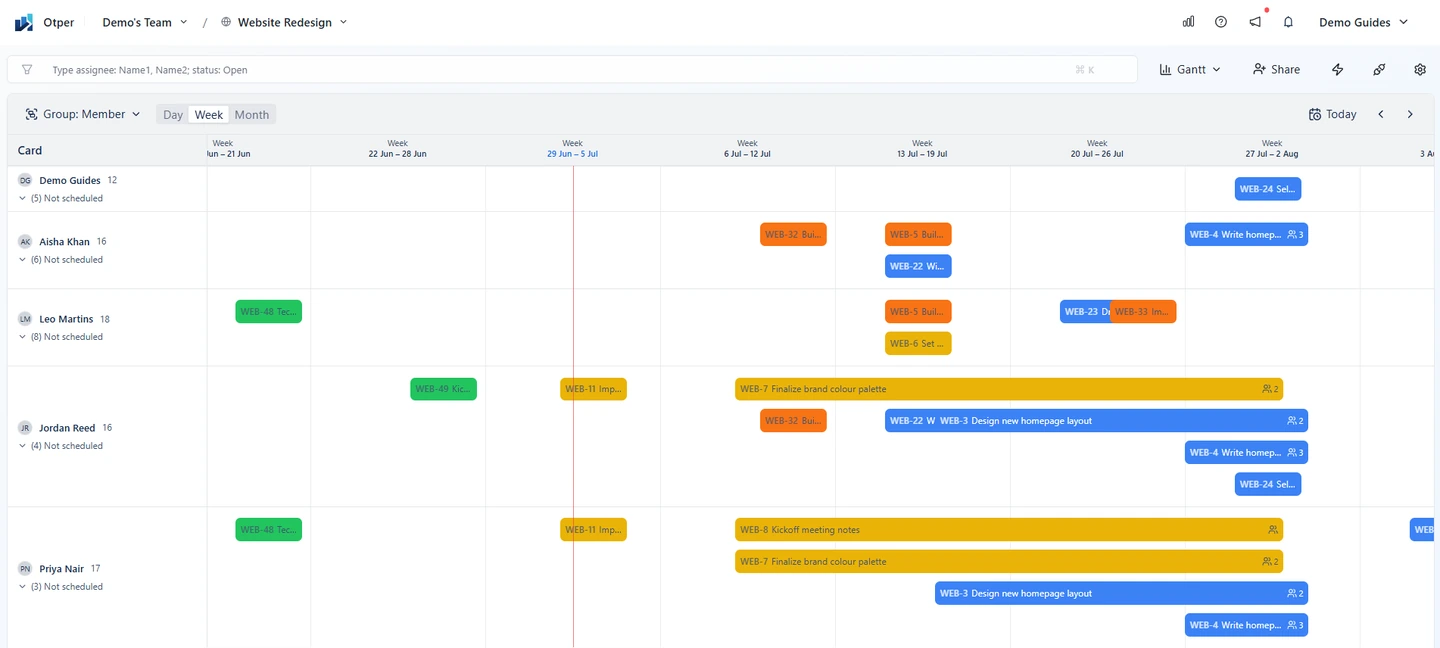
The same cards can be read in different ways depending on what you need to get done that day. Use the Board view for daily flow, List view for dense triage, Gantt view when deadlines and scheduling come into play, and Tickets view when work arrives as a stream of requests to review. Otper lets you switch between Board, List, Gantt, and Tickets views of the same data, so changing how you work never means rebuilding it somewhere else.
Tickets view is useful for request-driven work: support queues, bug intake, approvals, operations requests, or any board where open cards are best handled one at a time. It gives the board an inbox-style layout, with a scannable card list on the left and the selected card open on the right, so owners can work through active requests without losing the queue context. Cards you own or watch can show an unread marker when there is new activity you have not opened yet. It is still the same board and the same cards, just presented in a way that fits intake and follow-up work.
Common setup mistakes to avoid
- Too many lists, so the board becomes noise instead of signal.
- Cards with no owner — the fastest way to lose accountability.
- One mega-board for every project, which hides each project’s real status.
- An inconsistent “Done,” where some cards mean delivered and others mean merely started.
From board to insight
Set up your stages, create the board, make every card accountable, and agree on a few rules, and you have a workspace the whole team can follow. Once the board is running, the data it produces becomes useful on its own: which stage work gets stuck in, what is overdue, and who is overloaded. That is the subject of the next article, using Kanban analytics to find bottlenecks, overdue work, and workload issues.
FAQ
What lists should a Kanban board start with?
To Do, In Progress, Review, and Done work for most teams. Rename them to match the real stages your work moves through.
How many boards should we create?
One per project or ongoing stream. Splitting work this way keeps each board readable and its progress meaningful.
Do all cards need a due date?
No. Add due dates where there is a real commitment, but assign an owner to every active card so nothing is unattributed.
What are WIP limits and do I need them?
Work-in-progress limits cap how many cards sit in a stage at once, which prevents pile-ups. Add them once you notice a stage clogging.
Can a Kanban board handle deadlines?
Yes. Add start dates and due dates to cards, then use a Gantt or timeline-style view when scheduling matters.
Can I run a support or request queue on a board?
Yes. Switch to Tickets view for an inbox-style layout that shows open cards in a scannable list with the selected card open beside it. Cards you own or watch can show unread markers when there is new activity you have not opened yet.
Related guides
Ready to try it?
Create your first board in Otper and shape the lists around how your team already works.
Get started with Otper